Getting Started with Docker Networks
Inspecting Docker’s Default Networks
When Docker is installed, it automatically creates several default networks. List them using:
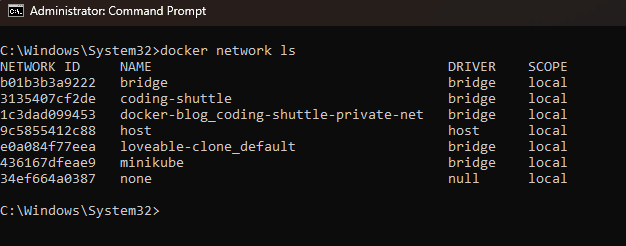
The bridge network is the default for containers. host shares the host’s stack, and none provides complete isolation. For most local development, you'll live in the bridge world. Let's explore that.
The Default Bridge: What You Need to Understand#
When you run a container without specifying a network, Docker places it on the default bridge network. Here's the catch: containers on the default bridge can only communicate via IP addresses, not container names. Let’s understand with example, we will use two containers with alpine image for this. These are tiny and comes with the ping utility ready to go. We'll name them c1 and c2.
Step 1: Creating Containers
When you run docker run -dit alpine sh:
d: You start it and keep working in your host terminal.iandt: You ensure that thesh(shell) process inside Alpine stays alive and "waiting" for you.
If you ran docker run -d alpine sh without the -it, the container would start, realize no one is talking to it, and immediately exit. The -it keeps that shell "alive" in the background.
Step 2: Find the IP Address
Now, let's find the actual IP address Docker assigned to c1 and c2. By using inspect command
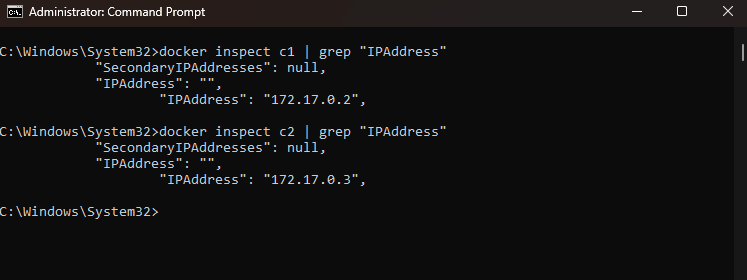
Step 3: Let's try to ping the containers
Let’s hop into c1 and try to reach c2 by its name.
Expected Result: You will see an error like ping: bad address 'c2'. This confirms that the default bridge doesn't know who "c2" is, which we already read in the beginning of this section.
Step 4: Now let's ping c2 using its ip-address
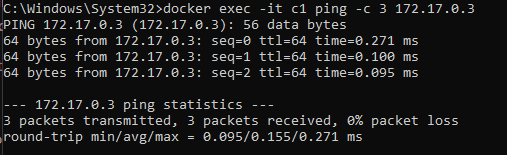
Expected Result: Success! The packets will travel through the virtual bridge (docker0) because the routing is there, even if the "address book" (DNS) is not.
Port Mapping: The Host vs Container#
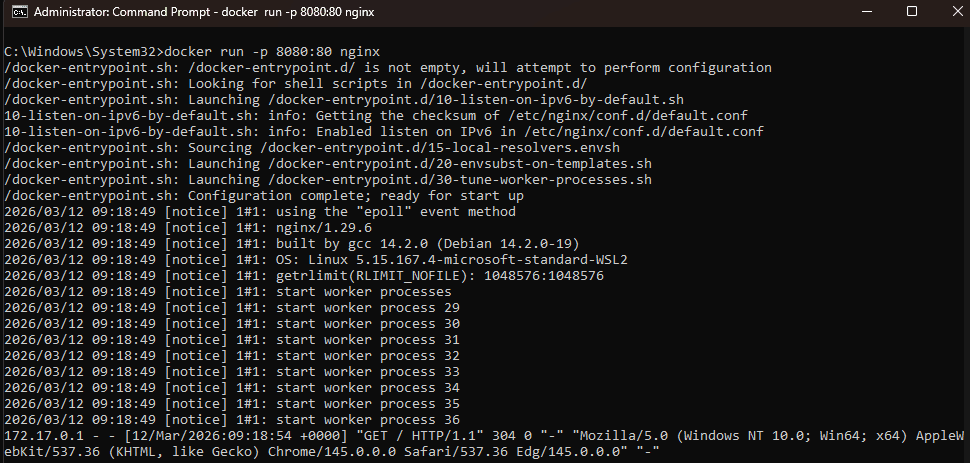
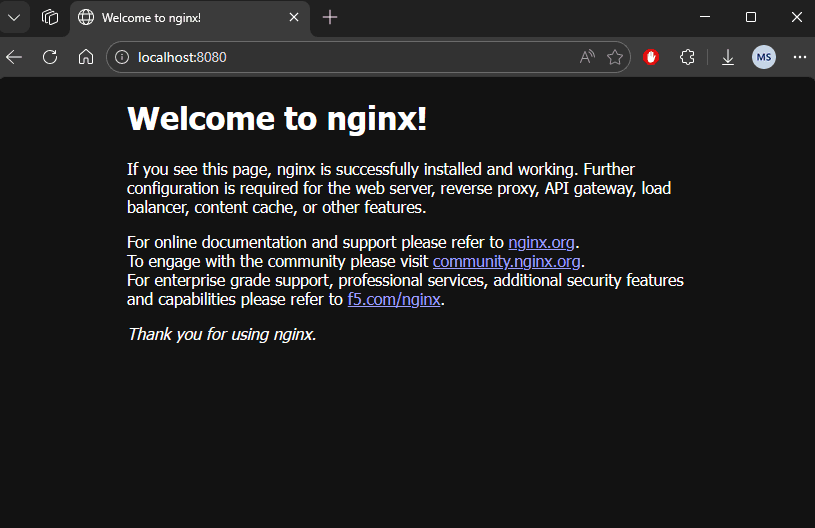
By default, Docker containers aren’t reachable from outside the host. To allow external systems to access a containerized service we need to map the container port to a port on host machine.
Syntax: docker run -p <Host-port>:<Container-port> <container-name>
Now this container is accessible on http://localhost:8080

Some extra commands#
- To disconnect/remove a container from a network use
docker network disconnect <network-name> <container-name-or-id> - You can remove a Docker network using
docker network rm <network-name> - To remove the unused docker networks you can use
docker network prune
Conclusion#
Understanding Docker’s default networking behavior is essential for managing container communication effectively. The default bridge network allows containers to communicate using IP addresses, while port mapping enables external access to containerized services. By inspecting networks, identifying container IPs, and configuring port mappings, developers can control how containers interact internally and with the host system, forming the foundation for more advanced Docker networking setups.