Docker Objects
When you use Docker, you are creating and using images, containers, networks, volumes, plugins, and other objects. This section is a brief overview of some of those objects.
Images#
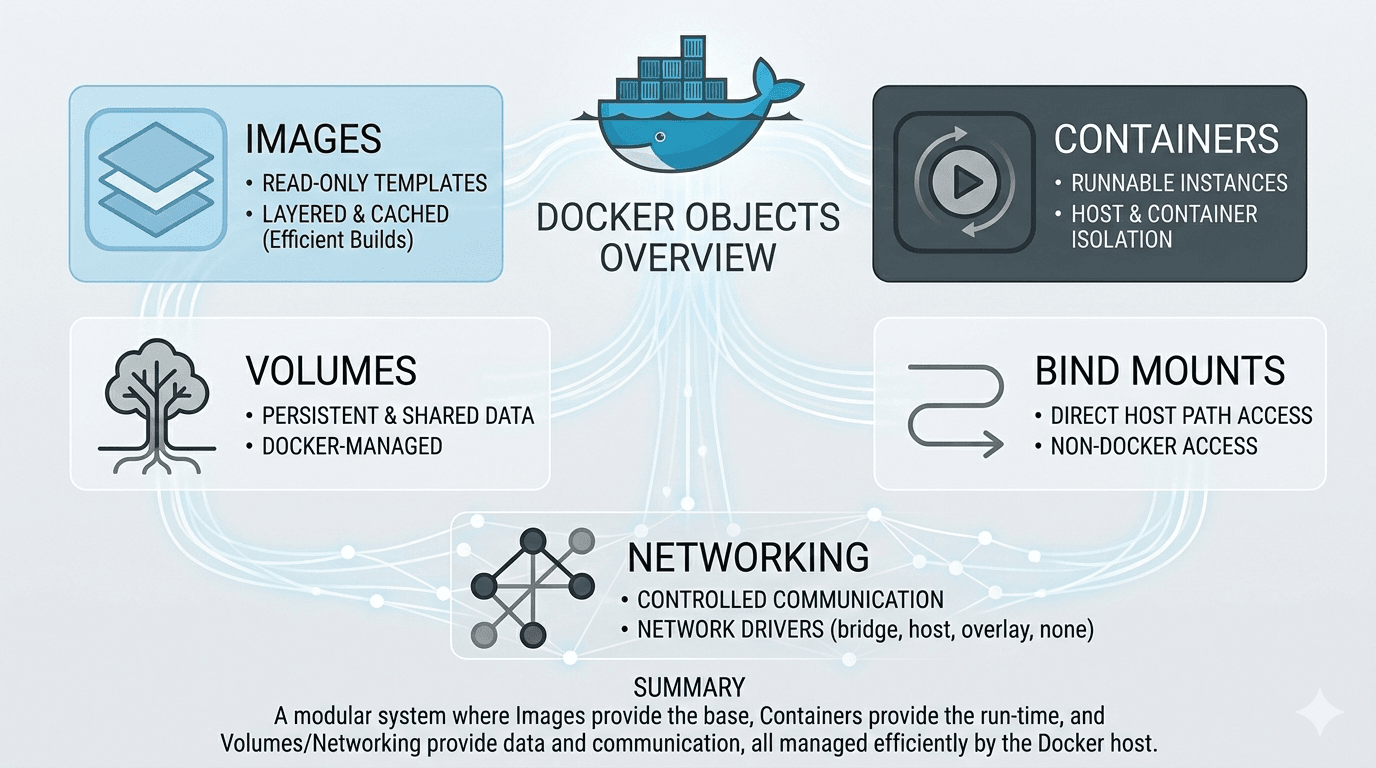
An image is a read-only, inert template that contains the instructions for creating a Docker container. Think of it as a blueprint or a class in object-oriented programming.
You can create your own image, or you might use another image as base with some additional customization. To create a custom Docker image, you define a Dockerfile that contains a sequence of instructions describing how the image should be built and how the application should run. Each instruction in the Dockerfile generates a separate image layer.
During the rebuild process, Docker uses a layer caching mechanism, meaning only the layers affected by changes are rebuilt while unchanged layers are reused. This layered architecture and caching strategy make Docker images efficient, compact, and faster to build and deploy compared to traditional virtualization approaches.
Containers#
A container is a runnable instance of an image. You can create, start, stop, move, or delete a container using the Docker API or CLI. You can connect a container to one or more networks, attach storage to it, or even create a new image based on its current state. By default, a container is relatively well isolated from other containers and its host machine.
Example: docker run -i -t ubuntu /bin/bash
The following command runs an ubuntu container, attaches interactively to your local command-line session, and runs /bin/bash. When you run a command such as docker run ubuntu, Docker performs several steps automatically:
1. Image Check and Pull
If the ubuntu image is not available on your local machine, Docker downloads it from the configured registry (such as Docker Hub), similar to running docker pull ubuntu.
2. Container Creation
Docker creates a new container from the image, similar to executing docker container create.
3. Read-Write Layer Allocation
A writable layer is added on top of the image layers. This allows the container to create, modify, or delete files during runtime without affecting the original image.
4. Network Configuration
Docker connects the container to the default network (if no custom network is specified).
- A network interface is created.
- An IP address is assigned.
- The container can access external networks using the host machine’s network connection.
5. Container Start and Command Execution
Docker starts the container and runs /bin/bash. If you use -i (interactive) and -t (terminal) flags:
- You can type commands into the container.
- Output is displayed directly in your terminal.
6. Container Stop
When you type exit, the /bin/bash process ends, and the container stops. The container is not deleted automatically. You can restart it later or remove it manually.
Storage#
Docker images are built-in form of layers and docker containers store all the data being used, on the container writable layer which only persisted till the lifespan of the container i.e. it is no longer accessible once the container is removed. This also makes it difficult to get the data out of the container if it is required by some other processes.
To persist the data irrespective of the container's lifecycle so that the files are available in the host filesystem even if the container is no longer available. Docker provides two options:
Docker Volumes
Volumes are the directories or files that exist on the host filesystem and are mounted to the containers for persisting data generated or modified by them. They are stored in the part of the host filesystem managed specifically by Docker and it should not be modified by non-Docker processes. Volumes are the most preferred way to store container data as they provide efficient performance and are isolated from the other functionalities of the Docker host.
Bind Mounts
This is also a mechanism provided by Docker to store container data on localhost, but the directory or file mounted using bind mounts can be accessed by non-Docker processes as well and it relies on the host machine's filesystem having a specific directory structure available because it uses absolute path for binding.
Bind mounts have limited functionality and can't be managed directly through Docker CLI, thus making it less preferable in comparison to volumes.
Networking#
Docker networking enables controlled communication between containers while maintaining network-level isolation. Each container runs in its own network namespace, which isolates its IP address, ports, and network interfaces from other containers unless explicitly connected.
By default, containers are isolated from each other, and a container can be connected to one or multiple user-defined networks. Containers on the same network can communicate using container names (built-in DNS resolution).
Docker provides multiple network drivers such as:
- bridge (default, single-host communication)
- host (shares host network stack)
- overlay (multi-host communication, used in orchestration)
- none (no networking)
Because containers share the host OS kernel, Docker requires only one operating system instance to run multiple isolated workloads. This reduces overhead compared to traditional virtual machines, where each workload requires a separate OS instance.
Conclusion#
Docker objects such as images, containers, volumes, and networks form the foundational building blocks of containerized applications. Images act as immutable blueprints, containers provide isolated runtime environments, volumes ensure persistent storage, and networking enables controlled communication. Together, these components create a lightweight, scalable, and efficient platform for modern application deployment.