Building Image using Dockerfile
Dockerfile#
A Dockerfile is a text-based document that's used to create a container image. It provides instructions to the image builder on the commands to run, files to copy, startup command, and more.
Common instructions#
Some of the most common instructions in a Dockerfile include:
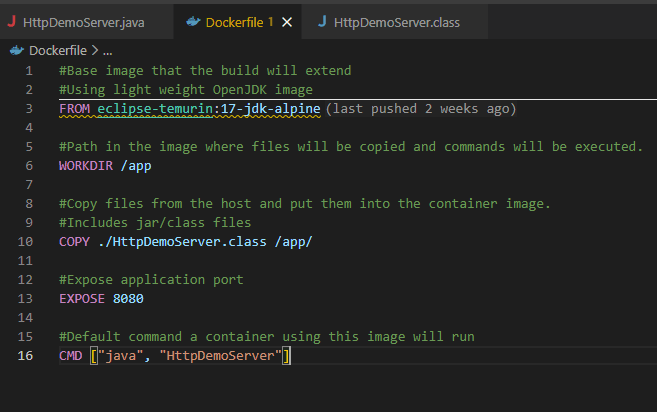
FROM <image>- this specifies the base image that the build will extend.WORKDIR <path>- this instruction specifies the "working directory" or the path in the image where files will be copied and commands will be executed.COPY <host-path> <image-path>- this instruction tells the builder to copy files from the host and put them into the container image.RUN <command>- this instruction tells the builder to run the specified command.ENV <name> <value>- this instruction sets an environment variable that a running container will use.EXPOSE <port-number>- this instruction sets configuration on the image that indicates a port the image would like to expose.USER <user-or-uid>- this instruction sets the default user for all subsequent instructions.CMD ["<command>", "<arg1>"]- this instruction sets the default command a container using this image will run.
Now let's understand step by step how to build.
1. First, create the application for which you want to build a Docker image. In this example, we are using a simple Java application. The overall process remains similar for other programming languages as well — only the build steps may differ.
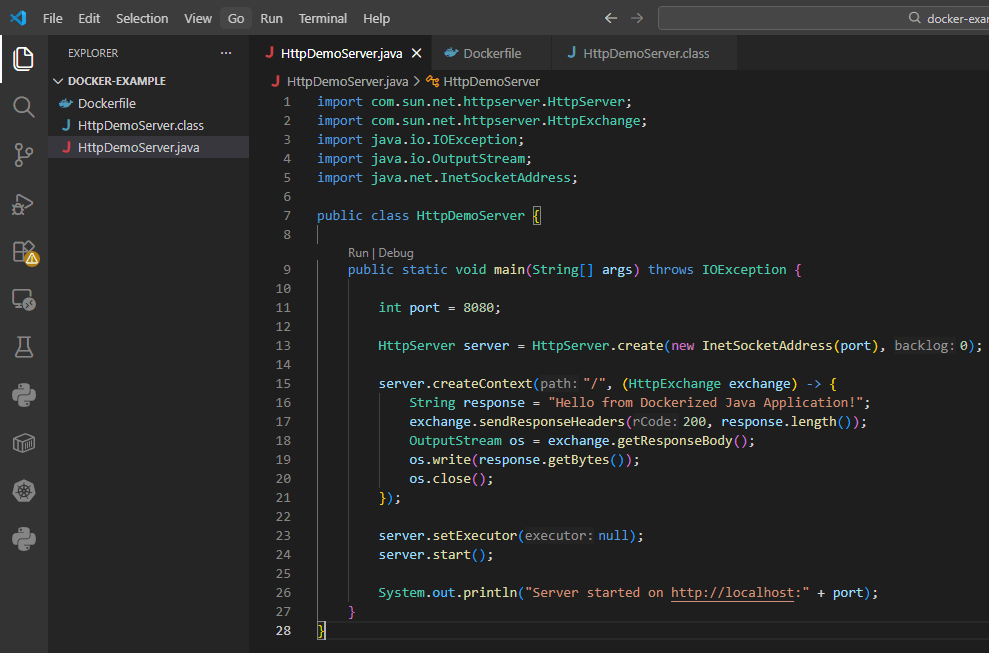
2. Compile the application to generate the required executable files. For a Java application, this means generating the .class file, which will be executed inside the Docker container.
3. Create a Dockerfile in the root directory of your project. This file contains the instructions Docker will use to build the image and define how the application should run inside the container.
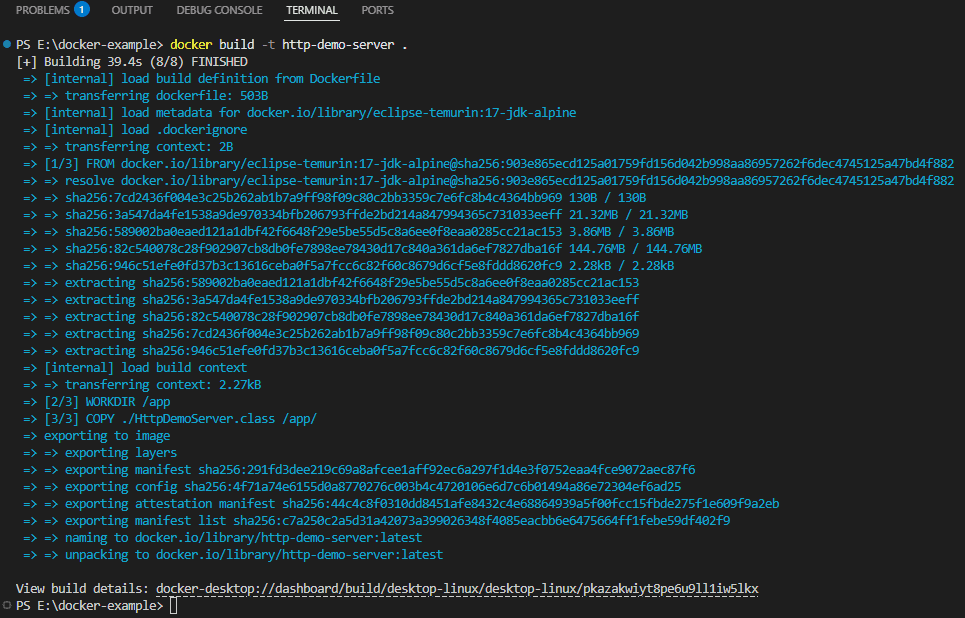
4. Now run the command docker build -t <image_name> to build an image using this file. eg: docker build -t http-demo-server .
here . means the present directory where the dockerfile resides.
5. Check the newly created image. Note that this image is available locally, it needs to be published to docker hub to be pull and accessed anywhere.

6. Now to run this image use docker run -p <host_port>:<container_port> <image_name> if you want to access this container from the local machine or just use docker run <image_name>
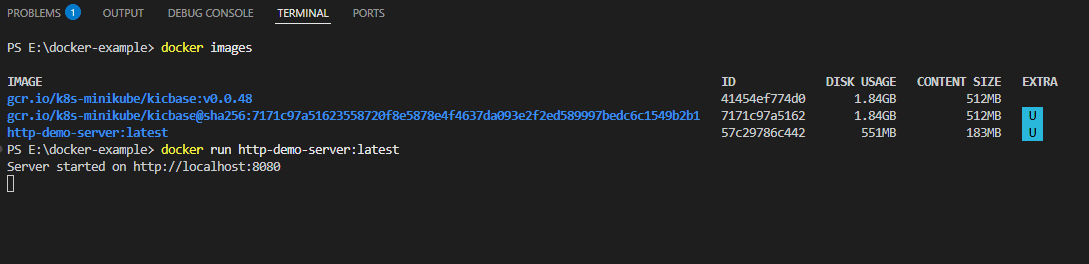
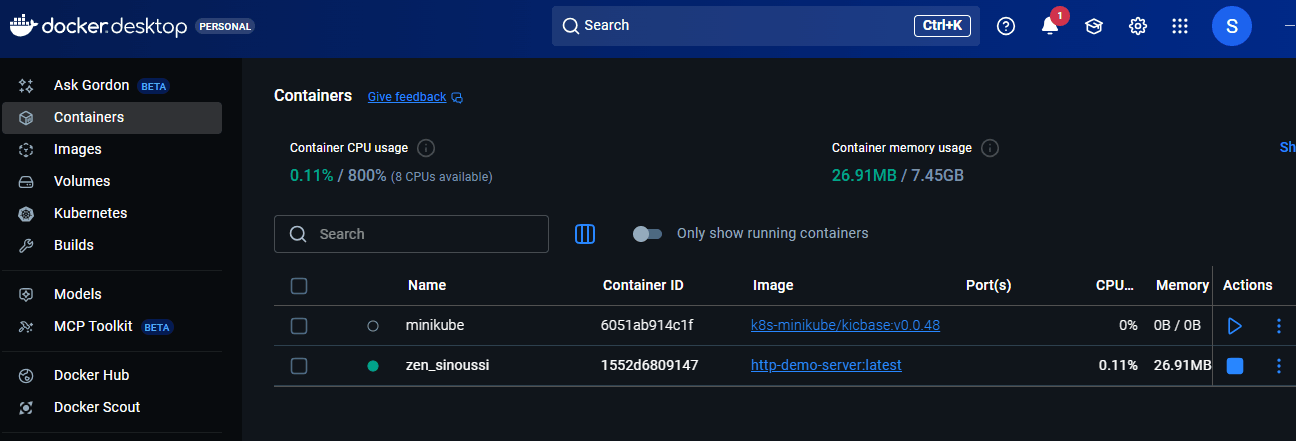
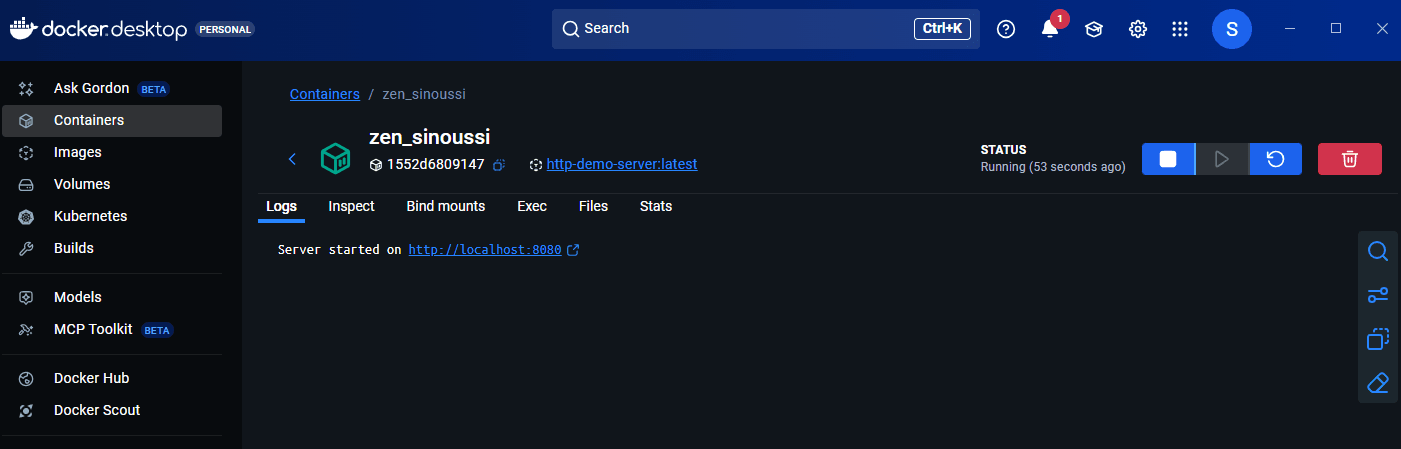
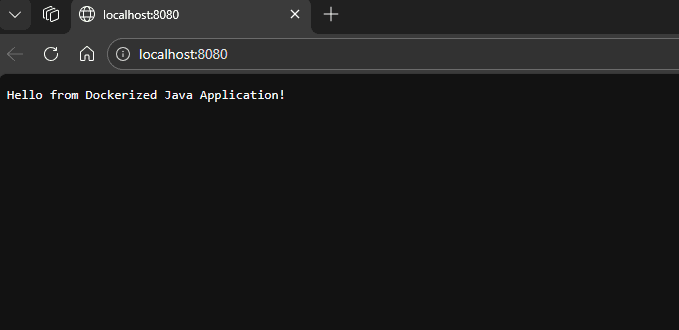
If you are not providing any container name then docker will assign some random name to the container and to access this from local machine forward the port other wise it will not be accessible. Run command
docker run -p <host_port>:<container_port> <image_name>
Conclusion#
Building a Docker image using a Dockerfile provides a structured and repeatable way to package applications with all required dependencies. By defining clear instructions such as base image, working directory, environment variables, and startup commands, Docker ensures consistent builds and predictable container behavior across environments.