Linux in One Shot - The Ultimate Cheat Sheet
A quick Linux cheat sheet with essential commands for files, processes, networking, and system management. Perfect for beginners and developers who need a fast reference while working in the terminal.

Shreyash Gurav
March 05, 2026
7 min read
Linux in One Shot - The Ultimate Cheatsheet
Linux in One Shot – The Ultimate Cheatsheet is a compact reference guide that brings together the most important Linux concepts, commands, and tools in one place. It is designed for developers, system administrators, and students who want a quick yet practical overview of Linux without going through lengthy documentation. From basic terminal commands and file management to permissions, networking, and process control, this cheatsheet provides concise explanations and organized command tables for fast learning and easy reference.
Introduction to Linux#
Linux is an open-source Unix-like operating system kernel first released by Linus Torvalds in 1991. It powers everything from servers and embedded systems to desktops and mobile devices. The operating system is distributed through various packages called distributions, with popular ones including Ubuntu, CentOS, Debian, and Fedora. Understanding Linux commands and concepts is essential for developers and system administrators working with servers, cloud infrastructure, or development environments.
Linux File System Structure#
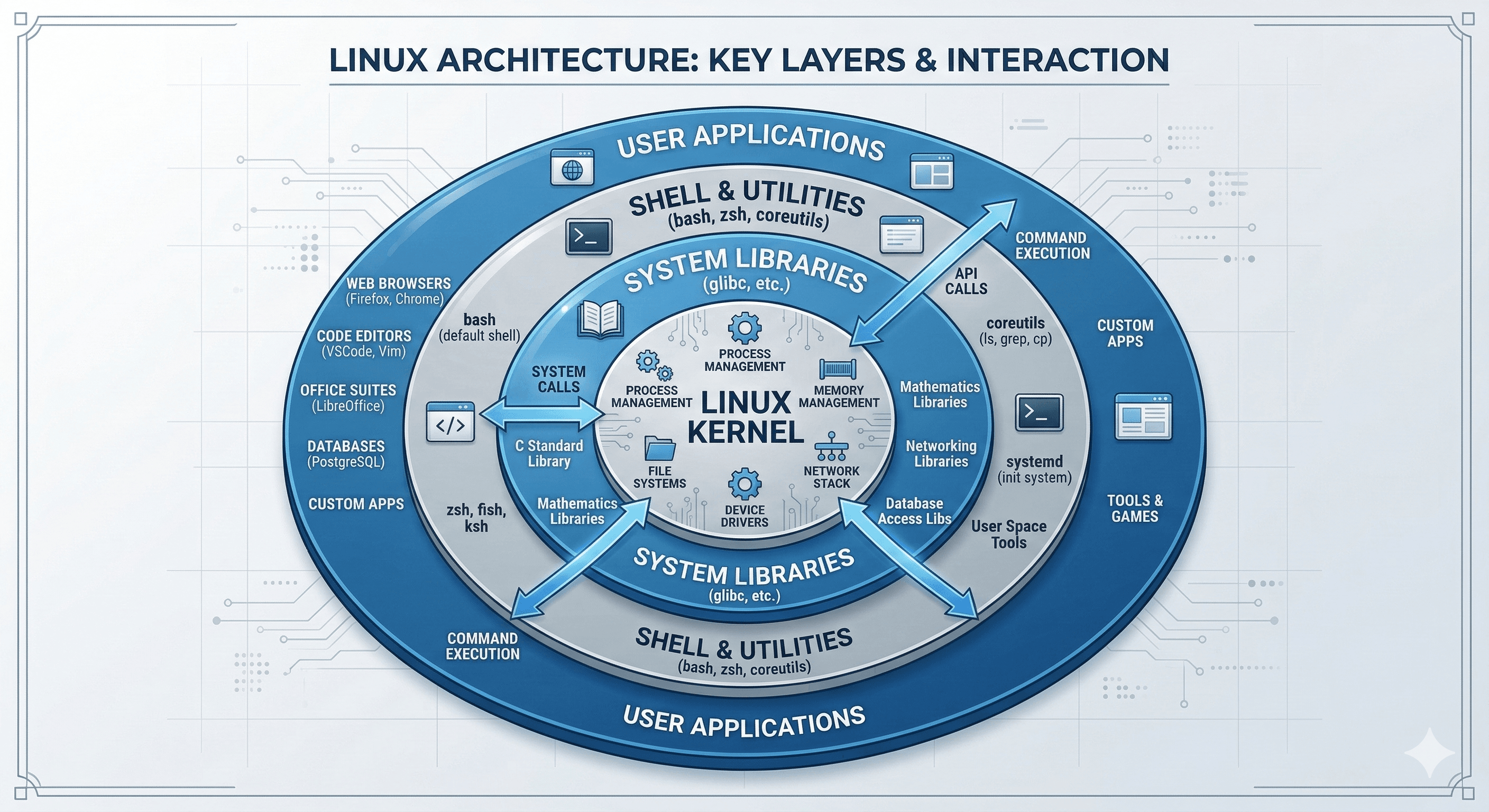
The Linux file system follows the Filesystem Hierarchy Standard (FHS), organizing all files and directories under the root directory ( / ). Everything in Linux is treated as a file, including hardware devices and system processes. Understanding this hierarchy helps you navigate and manage the system effectively.
| Directory | Purpose |
|---|---|
| /bin | Essential command binaries |
| /boot | Boot loader files and kernel |
| /dev | Device files |
| /etc | System configuration files |
| /home | User home directories |
| /lib | Shared libraries and kernel modules |
| /media | Mount point for removable media |
| /mnt | Temporary mount point |
| /opt | Optional application software |
| /proc | Virtual filesystem for process information |
| /root | Root user's home directory |
| /sbin | System administration binaries |
| /tmp | Temporary files |
| /usr | User utilities and applications |
| /var | Variable data like logs |
Essential Linux Commands#
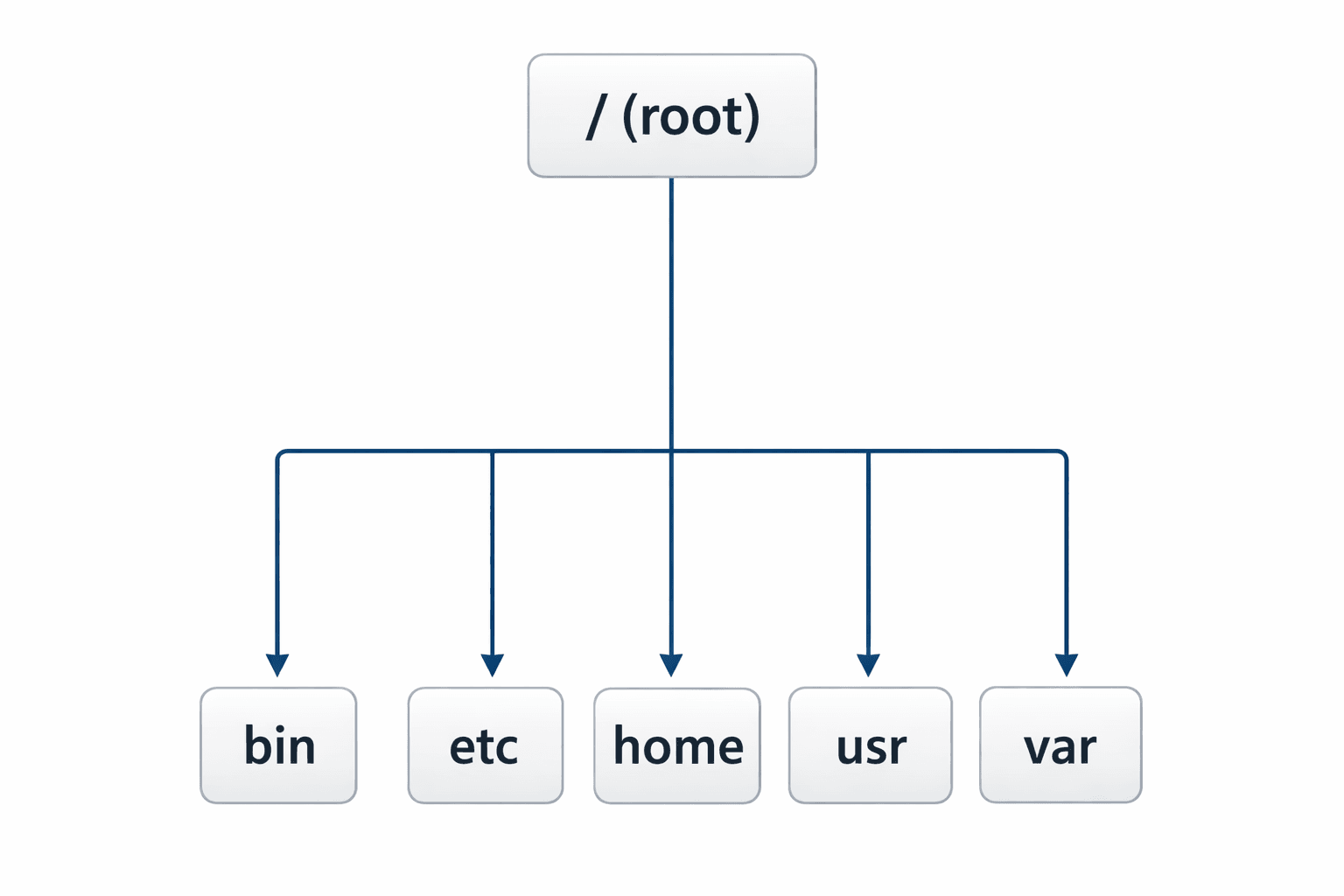
These fundamental commands form the foundation of working with Linux. Mastering them enables you to navigate the system, get help, and perform basic operations efficiently.
| Command | Description | Example |
|---|---|---|
| man | Display manual pages | man ls |
| pwd | Print working directory | pwd |
| whoami | Show current username | whoami |
| date | Display system date/time | date |
| cal | Show calendar | cal 2024 |
| echo | Print text to terminal | echo "Hello World" |
| clear | Clear terminal screen | clear |
| history | Show command history | history |
File and Directory Management#
Navigating and manipulating files and directories are daily tasks in Linux. These commands allow you to create, move, copy, delete, and search for files efficiently.
| Command | Description | Example |
|---|---|---|
| ls | List directory contents | ls -la /home |
| cd | Change directory | cd /var/log |
| mkdir | Create directory | mkdir -p projects/src |
| rmdir | Remove empty directory | rmdir olddir |
| cp | Copy files/directories | cp -r source dest |
| mv | Move/rename files | mv file.txt newname.txt |
| rm | Remove files | rm -rf tempdir |
| touch | Create empty file | touch newfile.txt |
| find | Search for files | find . -name "*.conf" |
| locate | Find files by name | locate passwd |
File Permissions and Ownership#
Linux uses a robust permission system to control access to files and directories. Each file has three permission sets (owner, group, others) with read, write, and execute capabilities. Understanding permissions is crucial for system security and multi-user environments.
| Command | Description | Example |
|---|---|---|
| chmod | Change file permissions | chmod 755 script.sh |
| chown | Change file owner | chown user:group file |
| chgrp | Change group ownership | chgrp developers file |
| umask | Set default permissions | umask 022 |
Permission values:
- r (read) = 4
- w (write) = 2
- x (execute) = 1
Process Management#
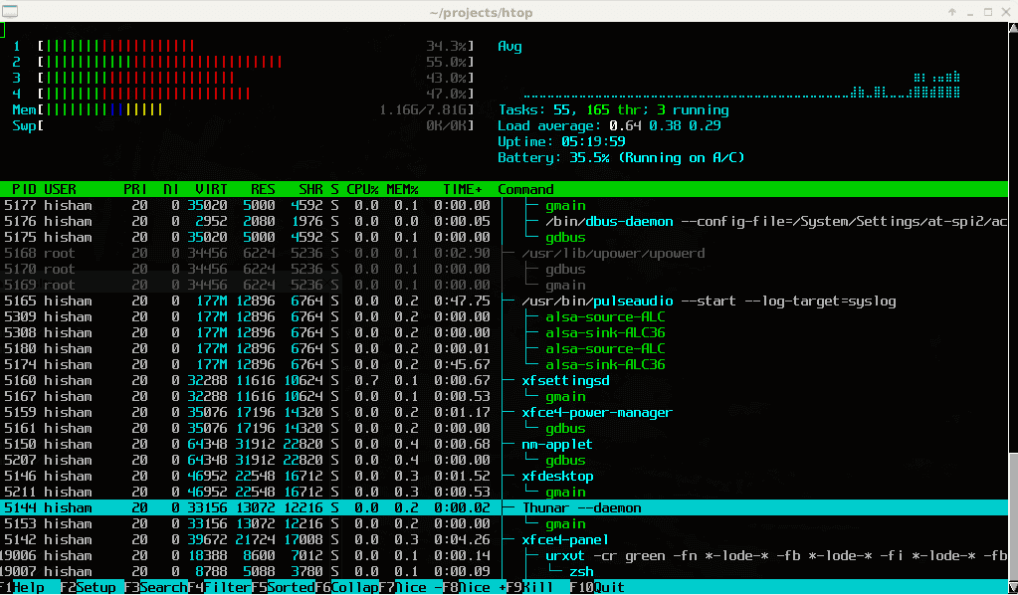
Processes are running instances of programs on your Linux system. Managing them effectively helps maintain system performance and troubleshoot issues. Linux provides commands to view, control, and terminate processes.
| Command | Description | Example |
|---|---|---|
| ps | Show process status | ps aux |
| top | Interactive process viewer | top |
| htop | Enhanced process viewer | htop |
| kill | Terminate process | kill -9 PID |
| pkill | Kill by name | pkill firefox |
| jobs | List background jobs | jobs |
| bg | Resume in background | bg %1 |
| fg | Bring to foreground | fg %1 |
| nice | Set process priority | nice -n 10 command |
| renice | Change process priority | renice +5 PID |
Networking Commands#
Networking commands help you configure, monitor, and troubleshoot network connections. These tools are essential for server administration, debugging connectivity issues, and ensuring services are accessible.
| Command | Description | Example |
|---|---|---|
| ping | Test network connectivity | ping -c 4 google.com |
| ifconfig | Configure network interfaces | ifconfig eth0 |
| ip | Show/manipulate routing | ip addr show |
| netstat | Network statistics | netstat -tulpn |
| ss | Socket statistics | ss -tulwn |
| curl | Transfer data from URLs | curl -I example.com |
| wget | Download files | wget https://file.zip |
| nslookup | DNS lookup | nslookup google.com |
| dig | DNS information | dig example.com |
| traceroute | Trace network path | traceroute google.com |
| ssh | Secure shell connection | ssh user@hostname |
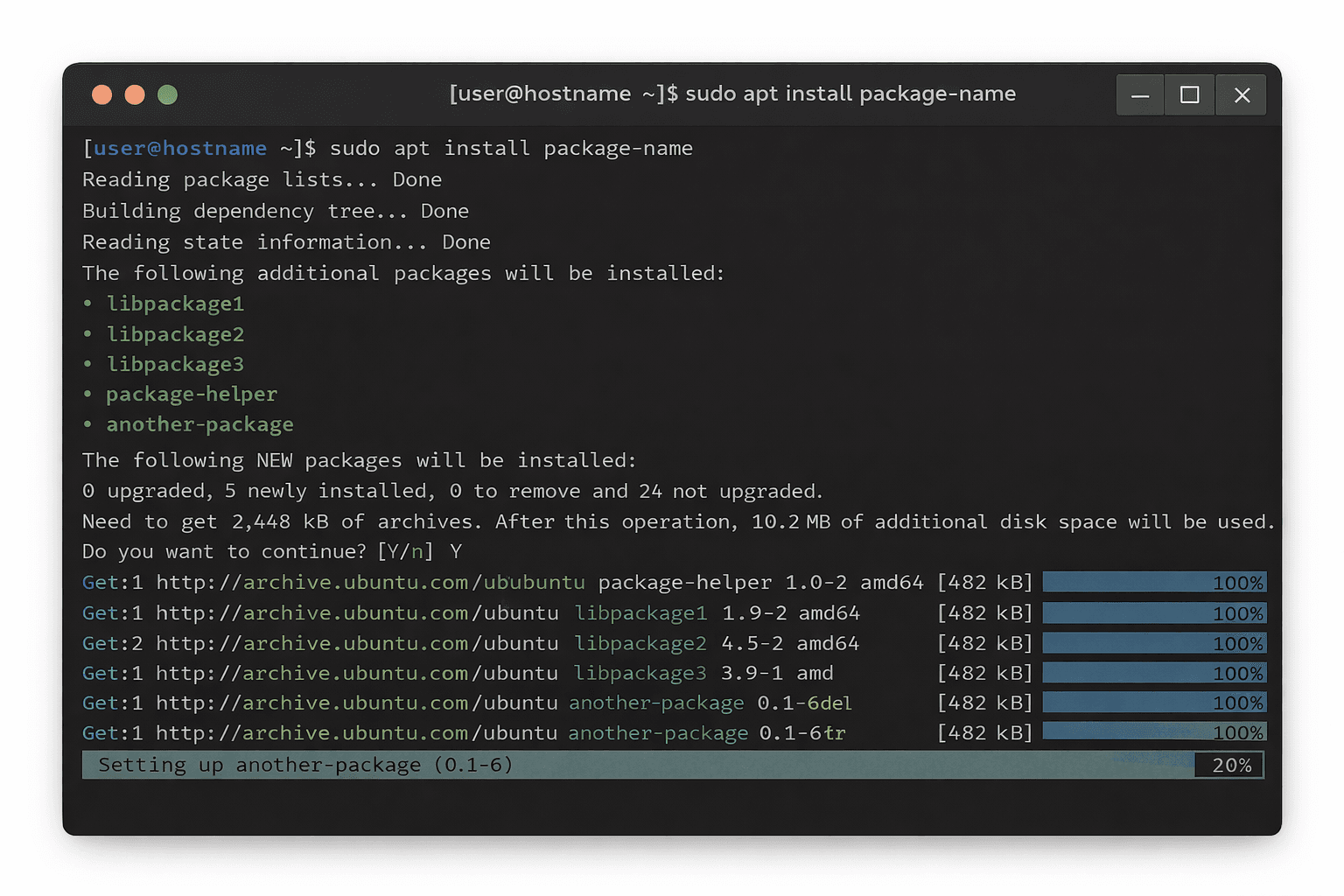
Package Management#
Package managers simplify software installation, updates, and removal. Different Linux distributions use different package managers, but the concepts remain similar. Understanding package management helps maintain system integrity and track installed software.
Debian/Ubuntu (apt):
| Command | Description |
|---|---|
| apt update | Update package list |
| apt upgrade | Upgrade all packages |
| apt install | Install package |
| apt remove | Remove package |
| apt search | Search packages |
| apt show | Show package details |
Red Hat/CentOS (yum/dnf):
| Command | Description |
|---|---|
| yum update | Update packages |
| yum install | Install package |
| yum remove | Remove package |
| yum list installed | List installed |
| dnf groupinstall | Install package group |
Disk and Storage Commands#
Managing disk space, partitions, and storage devices is critical for system maintenance. These commands help you monitor usage, mount devices, and manage file systems effectively.
| Command | Description | Example |
|---|---|---|
| df | Disk free space | df -h |
| du | Disk usage | du -sh /home |
| fdisk | Partition table manager | fdisk -l |
| mount | Mount file system | mount /dev/sda1 /mnt |
| umount | Unmount file system | umount /mnt |
| fsck | File system check | fsck /dev/sda1 |
| dd | Convert/copy file | dd if=/dev/zero of=file |
| lsblk | List block devices | lsblk |
| blkid | Block device attributes | blkid |
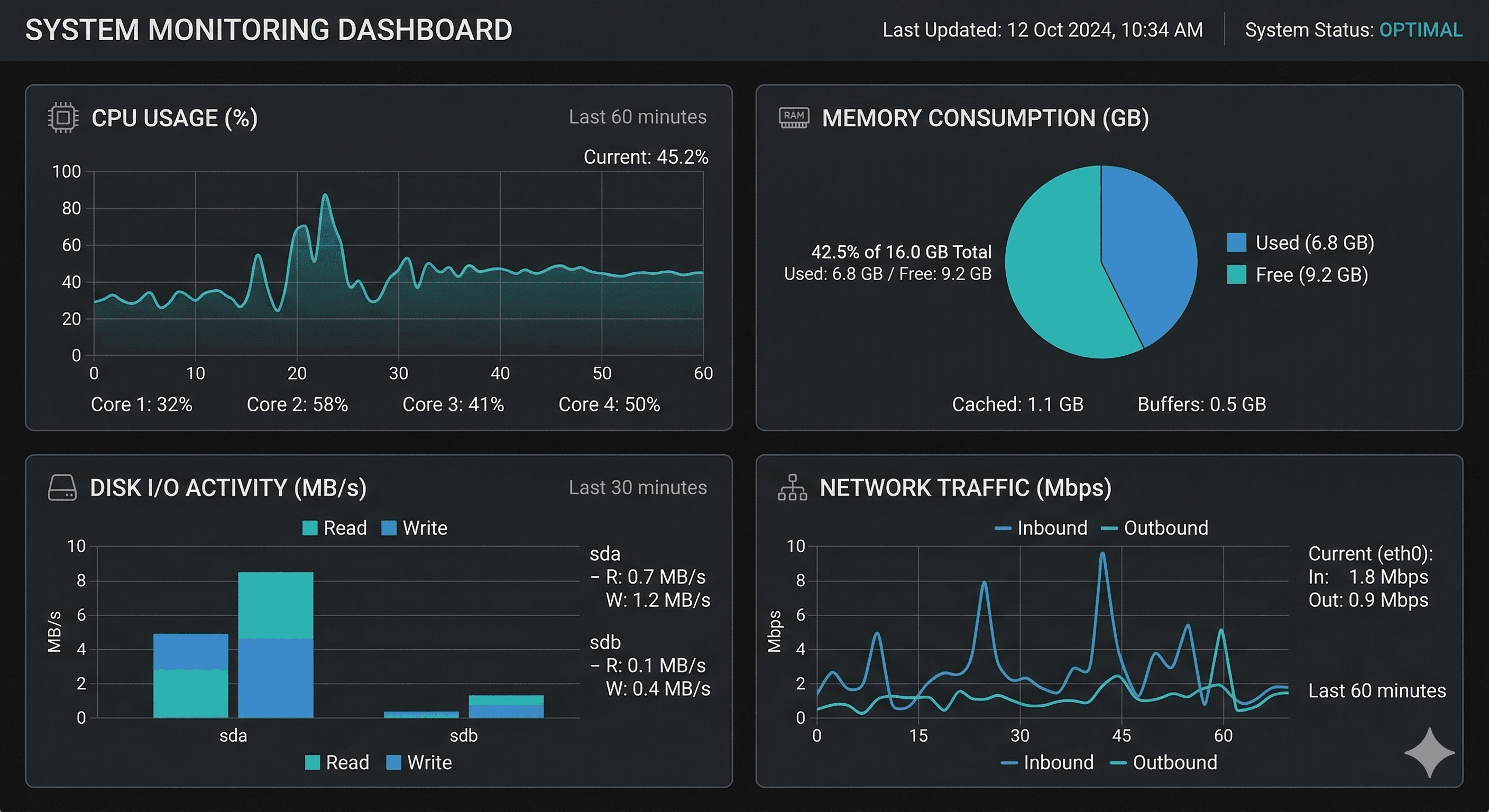
System Monitoring#
Proactive system monitoring helps identify issues before they become critical. These commands provide real-time and historical data about system resources, user activity, and overall system health.
| Command | Description | Example |
|---|---|---|
| uptime | System uptime | uptime |
| who | Logged in users | who -a |
| last | Last logins | last -10 |
| dmesg | Kernel messages | dmesg |
| journalctl | System logs | journalctl -xe |
| vmstat | Virtual memory stats | vmstat 5 |
| iostat | CPU/IO statistics | iostat -xz |
| free | Memory usage | free -h |
| watch | Run command repeatedly | watch df -h |
Bash Scripting Basics#
Shell scripting automates repetitive tasks and combines multiple commands into reusable programs. Bash is the default shell on most Linux systems and provides powerful programming constructs for system administration.
| Element | Description | Example |
|---|---|---|
| #! | Shebang interpreter | #!/bin/bash |
| $VAR | Variable reference | echo $HOME |
| $(cmd) | Command substitution | files=$(ls) |
| if/then/else | Conditional logic | if [ -f file ]; then |
| for/while | Loops | for i in {1..5}; do |
| $1,$2 | Positional arguments | echo $1 |
| $? | Exit status | if [ $? -eq 0 ] |
Useful Linux Tips#
These practical tips and shortcuts improve productivity and help you work more efficiently with the Linux command line. They're gathered from years of real-world usage.
Command-line shortcuts:
- Tab: Auto-complete commands and filenames
- Ctrl + C: Terminate current command
- Ctrl + Z: Suspend current process
- Ctrl + D: Exit current shell
- Ctrl + R: Search command history
- !!: Repeat last command
- !$: Use last argument from previous command
- Ctrl + A/E: Move to beginning/end of line
Redirection operators:
Quick system checks:
Conclusion#
Linux is a powerful operating system used widely in development, servers, and cloud environments. This cheatsheet brings together essential Linux commands and concepts in one place so you can quickly reference them while learning or working in the terminal. Regular practice is the best way to become comfortable with Linux and improve your command-line skills.
If you found this cheatsheet helpful, consider sharing it with your friends or colleagues who are learning Linux.
Want to Master Spring Boot and Land Your Dream Job?
Struggling with coding interviews? Learn Data Structures & Algorithms (DSA) with our expert-led course. Build strong problem-solving skills, write optimized code, and crack top tech interviews with ease
Learn more
![Complete System Design Interview Preparation For 2-7 Years of Experience [2026]](https://cs-prod-assets-bucket.s3.ap-south-1.amazonaws.com/System_Design_in_One_Shot_97afc77fc6.avif "Complete System Design Interview Preparation For 2-7 Years of Experience [2026]")