Git & Github in One Shot - The Ultimate Cheatsheet
Git & GitHub in One Shot – The Ultimate Cheatsheet is a developer-focused quick reference that covers essential Git commands, branching strategies, workflows, and GitHub collaboration features. It helps developers track changes, manage repositories, resolve conflicts, and maintain a clean project history efficiently, making it ideal for beginners, students, and professionals alike.

Shreyash Gurav
March 11, 2026
13 min read
Git & Github in one Shot - The Ultimate Cheatsheet
Git is the industry-standard version control system that tracks changes in your code, enables collaboration, and protects your project history. GitHub builds on Git by providing cloud hosting, pull requests, and team collaboration tools. This cheat sheet gives you quick access to essential Git commands, workflows, and best practices without the fluff.
Getting Started with Git#
What is Git and Why Use It#
Git is a distributed version control system that records snapshots of your files, allowing you to revert to previous states, compare changes, and collaborate without overwriting work. Unlike centralized systems, every developer has a complete copy of the project history locally. Git was created by Linus Torvalds in 2005 to manage the Linux kernel development efficiently.
Key Points
- Git tracks content changes, not just file names
- Every clone is a full backup of the entire repository
- Branching in Git is lightweight and inexpensive
- Changes are stored as snapshots, not file differences
- Git uses cryptographic hashing (SHA-1) to ensure data integrity
Local vs Remote Repositories#
A local repository exists on your machine and contains the complete project history with all branches. A remote repository is hosted on a server like GitHub, GitLab, or Bitbucket, enabling team collaboration and backup.
Key Points
- Local repos allow offline work and fast operations
- Remote repos serve as the centralized source of truth
- Changes move between repos through push and pull operations
- You can connect multiple remotes to a single local repo
- The default remote name is typically "origin"
Git Installation and Configuration#
Install Git from git-scm.com or using your package manager. After installation, configure your identity and preferences to ensure commits are properly attributed.
Initializing and Cloning Repositories#
Start version control in an existing project with git init or copy an existing remote repository with git clone. These are the entry points to any Git workflow.
Basic Git Workflow#
The fundamental workflow moves changes from your working directory to the staging area, then commits them to the repository history. This three-step process gives you control over what gets recorded.
Key Points
- Working directory contains files you're editing
- Staging area (index) is where you prepare your next commit
- Commits are permanent snapshots with unique IDs
- Always write clear commit messages explaining why, not what
Ignoring Files with .gitignore#
The .gitignore file tells Git which files or patterns to intentionally untrack, keeping your repository clean of temporary files, build artifacts, and sensitive information.
Key Points
- Place
.gitignorein your repository root or subdirectories - Patterns support wildcards and negation with
! - Already tracked files are not affected by ignore rules
- Use global gitignore for OS-specific files
- Common ignores: node_modules, .env, .DS_Store, build folders
Branching and Collaboration#
Branching in Git#
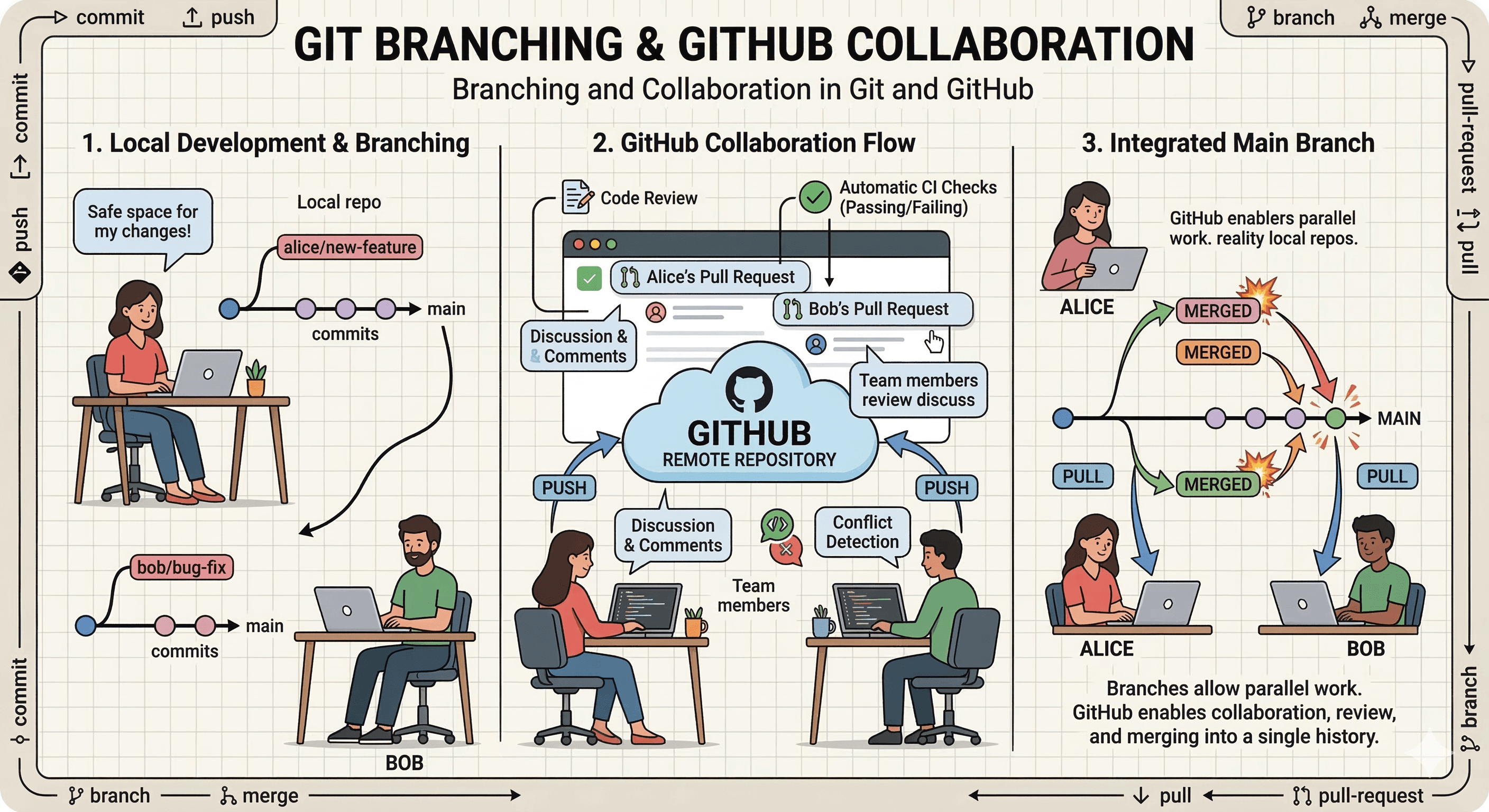
Branches are lightweight pointers to specific commits, allowing parallel development without affecting the main codebase. Creating and switching branches is instantaneous because Git just moves a pointer.
Key Points
- Main branch is typically called
mainormaster - Keep branches focused on single features or fixes
- Delete branches after merging to keep clean history
- Branch names should be descriptive:
feature/,bugfix/,hotfix/
Handling Merge Conflicts#
A merge conflict occurs when Git cannot automatically reconcile differences between two branches. This usually happens when the same line of a file has been modified differently in two branches.
Signs of a Conflict
- Git shows messages like
CONFLICT (content): Merge conflict in <file> git statusshows files asboth modified
Resolving Conflicts
- Open the conflicted file(s). Git marks conflicts like this:
- Edit the file to keep the correct version or combine changes.
- After fixing conflicts, mark as resolved:
- Complete the merge:
Best Practices
- Pull frequently to minimize conflicts
- Communicate with teammates about overlapping work
- Keep branches small and focused
- Use tools like
git mergetoolfor complex merges
Merging vs Rebasing#
Both commands integrate changes from one branch into another, but they handle history differently. Merges preserve exact chronology while rebasing creates a linear history.
| Aspect | Merge | Rebase |
|---|---|---|
| History | Preserves exact timeline with merge commits | Creates linear, cleaner history |
| Commit IDs | Original commits keep their IDs | Commits get new SHA hashes |
| Complexity | Simple, safe for shared branches | Riskier for public branches |
| Troubleshooting | Easier to see when changes happened | Harder to trace original context |
| Use case | Integrating completed features | Updating feature branch with main |
Key Points
- Never rebase public/shared branches
- Merge when preserving context matters
- Rebase for clean, linear history before pull requests
- Interactive rebase helps clean up local commits
Remote Repositories#
Remotes are versions of your repository hosted on servers. They enable collaboration by allowing you to share commits and pull changes from teammates.
Key Points
originis the default name for your cloned remoteupstreamoften refers to the original repository in forks- Fetch is safe; pull combines fetch and merge
- Always pull before pushing to avoid conflicts
Collaborating with GitHub#
GitHub transforms Git from a version control system into a complete collaboration platform. It provides the interface and tools that enable teams to review code, track work, and automate workflows around your Git repositories.
Key Points
- Pull requests are the core of code review and collaboration
- Issues track bugs, feature requests, and tasks
- Projects visualize work using Kanban boards
- GitHub Actions automate testing and deployment
- Code owners can be automatically requested for reviews
Pull Request Workflow
- Push your feature branch to GitHub
- Open a pull request comparing your branch to main
- Add a clear description and request reviewers
- Discuss changes and push additional commits if needed
- Merge once approved and all status checks pass
- Delete the branch after merging to keep the repository clean
Forking and Syncing with Upstream#
Forking creates a personal copy of someone else's repository on GitHub. This is essential for open-source contributions where you don't have write access.
Key Points
- Forks are independent repositories under your account
- Keep your fork synced to contribute clean pull requests
- The original repo is typically called "upstream"
- Never commit directly to upstream main
Viewing Commit History#
Git's log provides powerful filtering and formatting options to navigate project history. Understanding history helps debug issues and understand code evolution.
Key Points
- Each commit has a unique 40-character SHA hash
- Use
-onelinefor the 7-character short hash - Combine flags for custom views
git showdisplays a single commit's details
Undoing Changes#
Git provides multiple ways to undo changes depending on what stage they're in and whether you've shared them. Understanding the difference between reset, revert, and checkout is crucial.
Key Points
resetmoves the branch pointer and optionally modifies working directoryrevertcreates a new commit that undoes changes (safe for shared history)checkoutorrestorefor working directory files- Never use
-hardif you're unsure about losing changes
Tagging and Releases#
Tags mark specific points in history as important, typically for releases. They're like branch references that never move.
| Tag Type | Description | When to Use |
|---|---|---|
| Lightweight | Just a pointer to a commit | Temporary labels, personal markers |
| Annotated | Full object with message, author, date | Public releases, official versions |
Collaboration Best Practices#
Effective collaboration requires clear conventions and communication. These practices prevent conflicts and keep history readable.
Key Points
- Write commit messages in imperative tense: "Fix login bug"
- Pull before starting work to stay updated
- Keep commits focused on single changes
- Use feature branches for all changes
- Review your own pull request before requesting reviews
- Resolve conflicts locally before pushing
- Communicate breaking changes in commit messages
Branching Strategies#
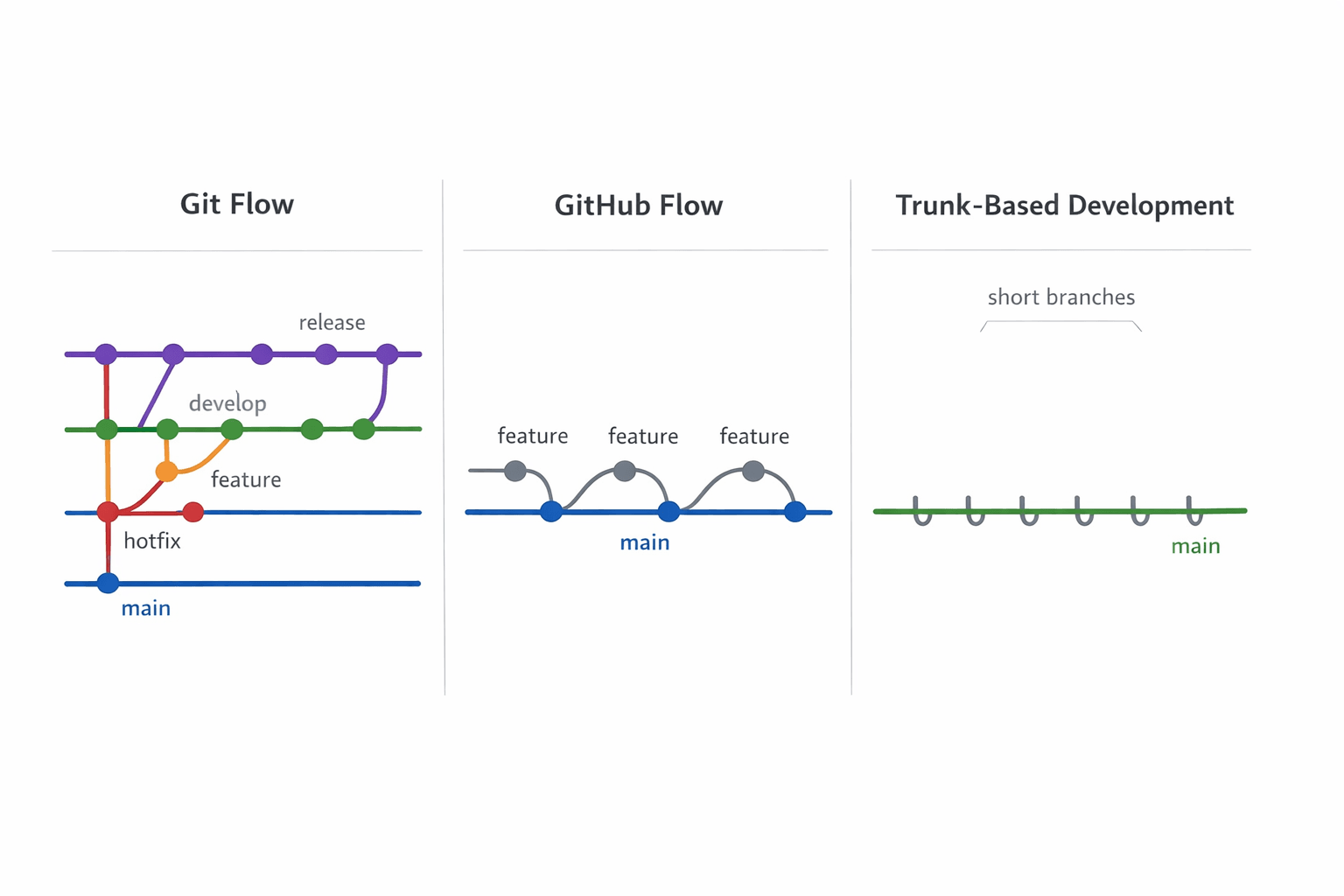
Different workflows suit different team sizes and release cycles. Choose the strategy that matches your deployment frequency and team structure.
| Strategy | Structure | Best For | Complexity |
|---|---|---|---|
| Git Flow | main, develop, feature, release, hotfix | Large projects with scheduled releases | High |
| GitHub Flow | main + feature branches | Continuous deployment, simple projects | Low |
| Trunk-Based | short-lived feature branches off main | CI/CD, multiple daily deployments | Medium |
Git Flow
mainalways reflects production-ready statedevelopintegrates completed features- Release branches prepare for production
- Hotfix branches patch production directly
GitHub Flow
- Anything in
mainis deployable - Create branches for features/fixes
- Open pull requests for discussion
- Deploy immediately after merging
Trunk-Based Development
- Small, frequent commits directly to main or short-lived branches
- Feature flags hide incomplete work
- Continuous integration runs on every commit
- Releases are snapshots of main at any time
Stashing Changes and Applying Patches#
Stash temporarily saves uncommitted changes when you need to switch contexts. It's like a clipboard for your working directory.
Key Points
- Stashes are stack-based (last in, first out)
- Untracked files aren't stashed by default (use
u) - Stashes are local only, never pushed
- Use for quick context switches, not long-term storage
Rewriting History#
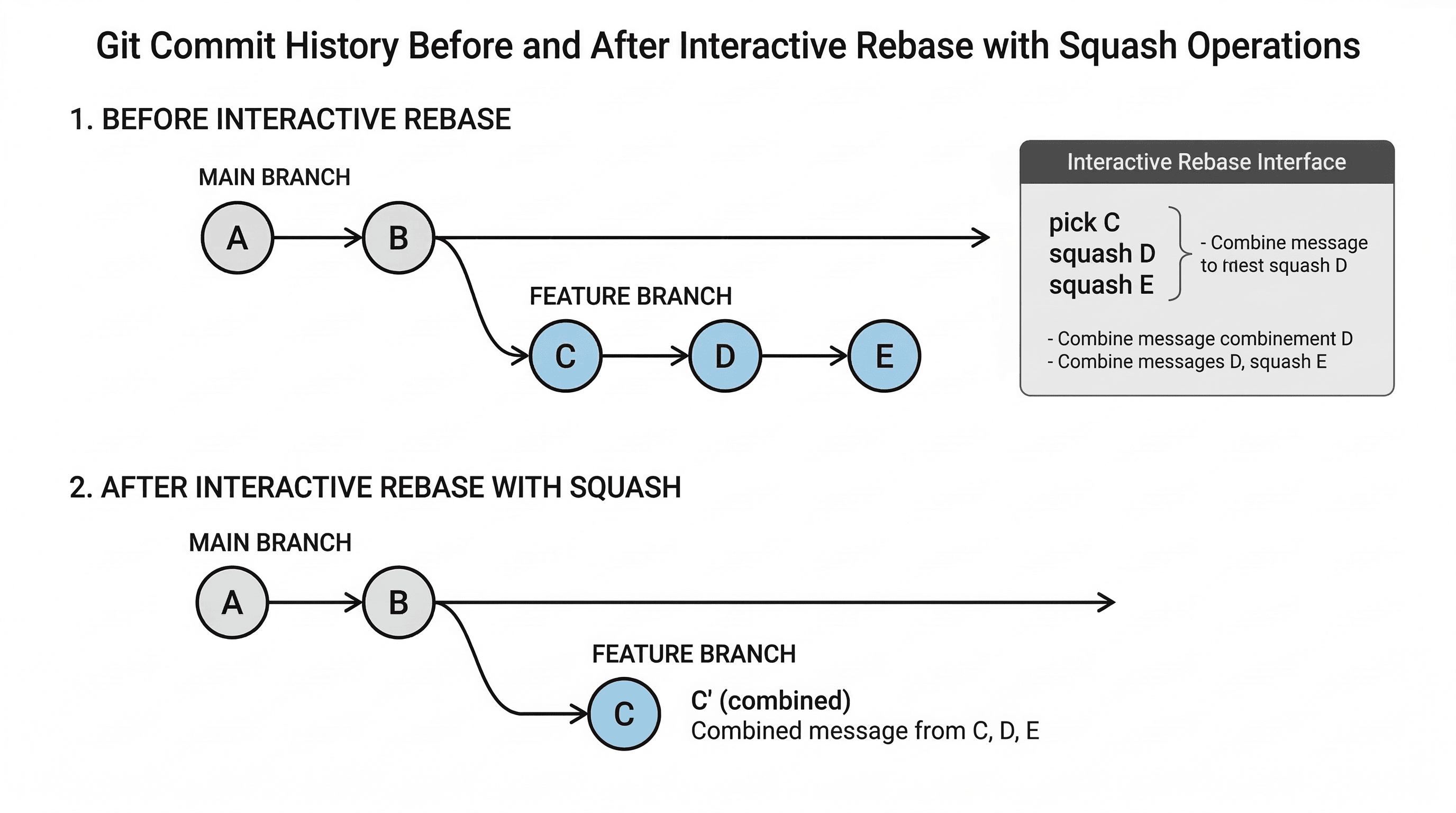
Sometimes you need to clean up commits before sharing them. Amend and interactive rebase let you modify local history, but never rewrite public commits.
Rebase Interactive Options
pick- use the commitreword- change commit messageedit- modify commit contentsquash- combine with previous commitfixup- like squash but discard messagedrop- remove commit
Git LFS for Large Files#
Git LFS (Large File Storage) replaces large files with text pointers while storing the actual content on a remote server. This keeps repositories fast and clones small.
Key Points
- Install LFS separately:
git lfs install - Track file types:
git lfs track "*.psd" - LFS files are downloaded only when needed
- Requires server support (GitHub, GitLab support LFS)
- Great for binaries, assets, datasets, and media
Security in Git and GitHub#
Secure your code and access with proper authentication and repository protection. Never commit secrets, tokens, or passwords.
| Method | Setup | Use Case | Security |
|---|---|---|---|
| HTTPS | Username + token | Simple setup, firewalls | Token-based, 2FA support |
| SSH | Generate key pair | Frequent pushes, automation | Key-based, very secure |
GitHub Security Features
- Branch protection rules prevent direct pushes to main
- Require pull request reviews before merging
- Require status checks to pass
- Dependabot alerts for vulnerable dependencies
- Secret scanning detects committed credentials
- Personal access tokens replace passwords for HTTPS
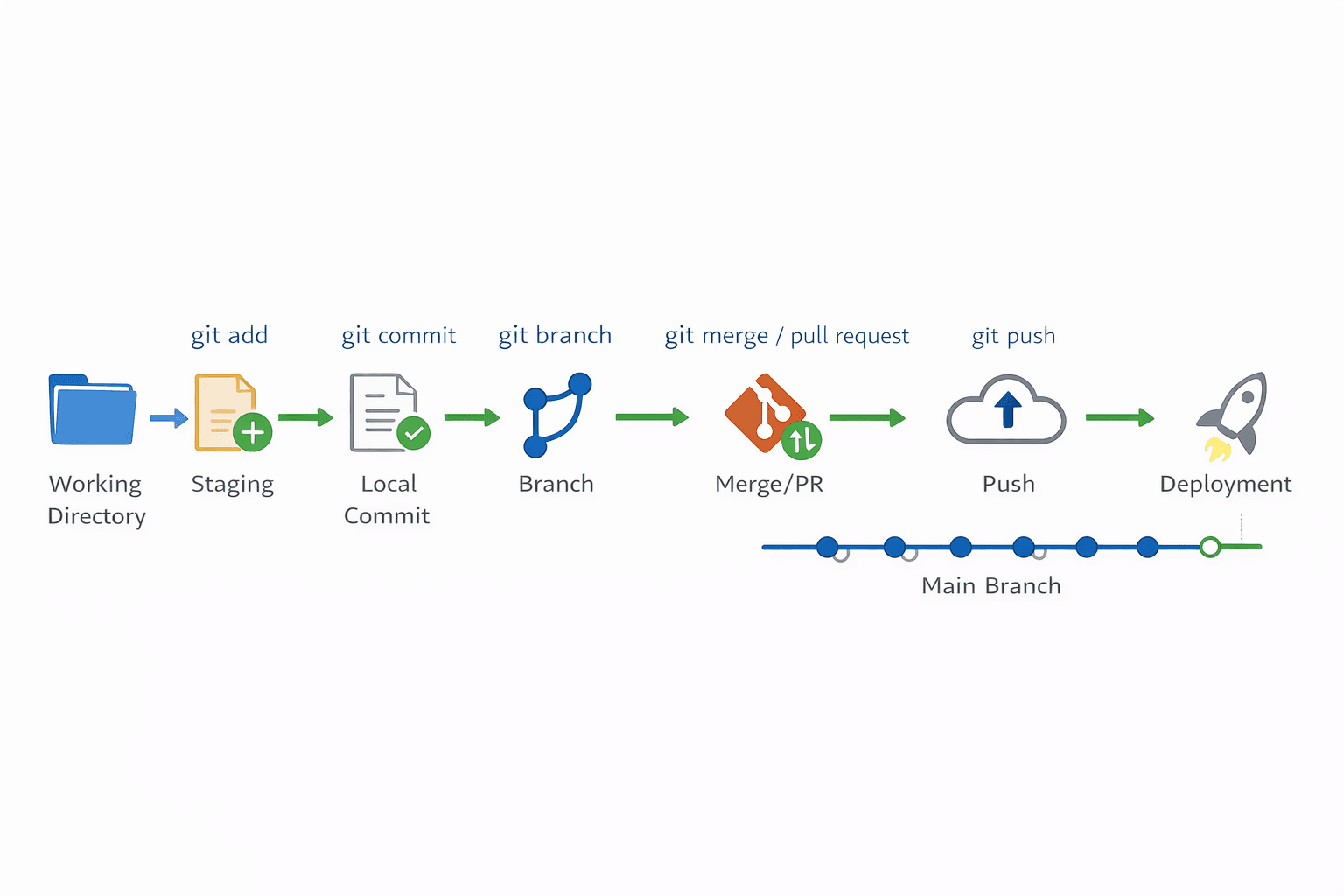
Workflow Summary#
The complete Git workflow connects local changes through staging, commits, and branches to remote collaboration and deployment.
Conclusion#
Git and GitHub form the backbone of modern software development, enabling teams to collaborate efficiently while maintaining complete project history. This cheat sheet condenses years of best practices into a quick-reference format designed for daily use. Master these commands and workflows to work confidently whether you're solo coding or contributing to large open-source projects. Bookmark this guide, share it with your teammates, and return whenever you need to refresh your Git knowledge. If you found this useful, pass it along to fellow developers.
Want to Master Spring Boot and Land Your Dream Job?
Struggling with coding interviews? Learn Data Structures & Algorithms (DSA) with our expert-led course. Build strong problem-solving skills, write optimized code, and crack top tech interviews with ease
Learn more