Docker Explained Simply - The Only Cheat Sheet you need
This Docker cheat sheet is a concise reference guide for developers, computer science students, and DevOps beginners learning containerization. It covers core Docker concepts such as images, containers, networking, volumes, and registries in a clear and structured format. The guide also includes essential Docker commands, Dockerfile examples, and docker-compose configurations for managing containerized applications. It serves as a quick reference to help developers build, run, and deploy applications efficiently using Docker.

Shreyash Gurav
March 11, 2026
12 min read
Docker Explained Simply - The Only Cheat Sheet you need
Docker has revolutionized software development by enabling consistent, isolated application environments through containerization. This cheat sheet provides a concise reference for developers, students, and DevOps beginners to quickly master essential Docker concepts and commands. Use it as your go-to guide for daily Docker tasks, from building images to orchestrating multi-container applications.
Introduction to Docker#
What is Docker and Why Use It#
Docker is a platform that packages applications and their dependencies into lightweight containers that run consistently across any system. It eliminates the "works on my machine" problem by ensuring identical environments from development to production. Developers use Docker to simplify dependency management, streamline deployment, and improve resource utilization compared to traditional virtual machines.
Problems Docker Solves#
- Environment inconsistencies between development, testing, and production
- Complex dependency management and version conflicts
- Inefficient resource utilization with traditional virtualization
- Slow onboarding of new team members to existing projects
- Difficulty scaling applications across different infrastructure
Docker vs Virtual Machines#
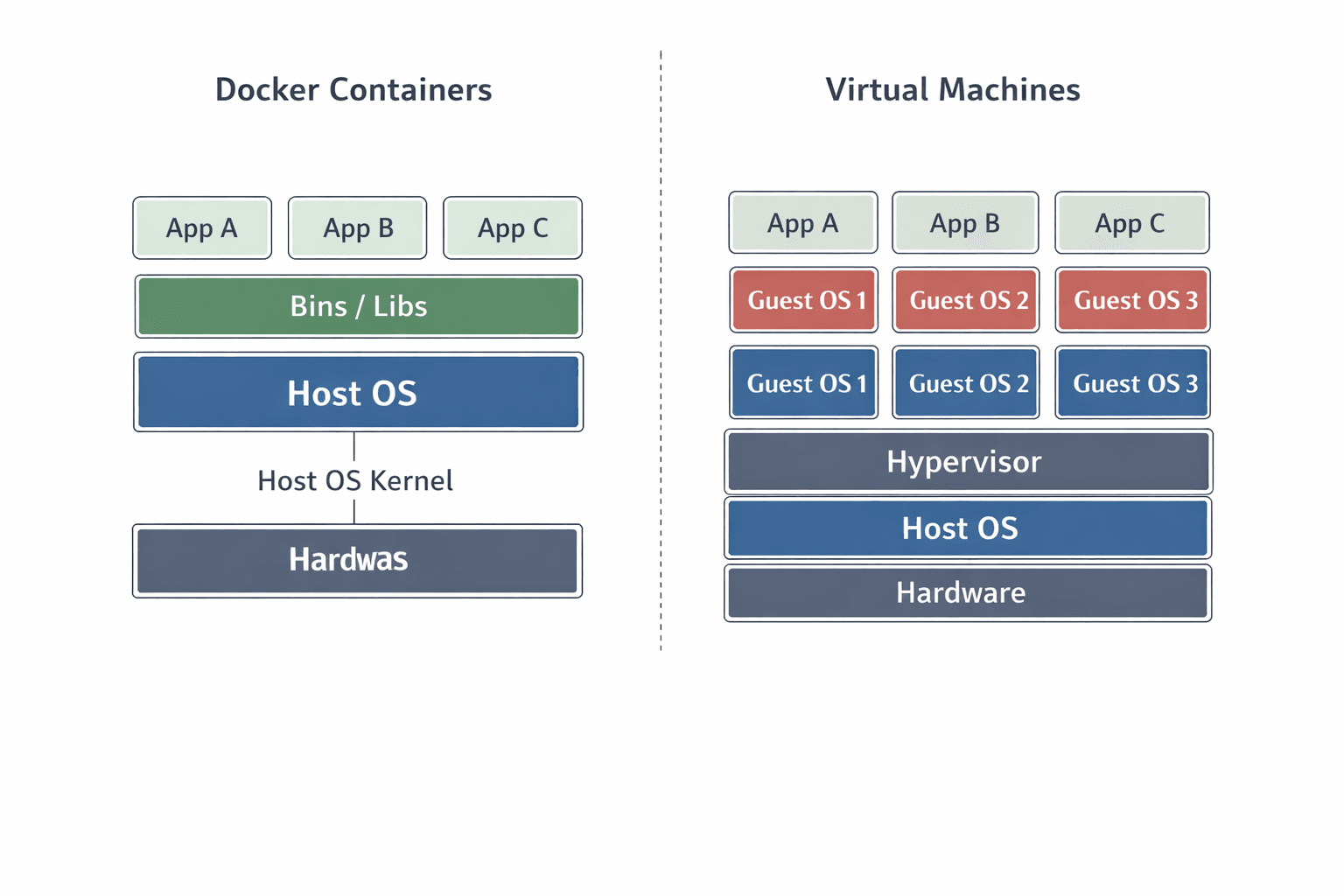
Containers share the host operating system kernel and run as isolated processes, while virtual machines include complete guest operating systems. This fundamental difference makes containers more lightweight, faster to start, and more resource-efficient than VMs.
| Aspect | Containers | Virtual Machines |
|---|---|---|
| Operating System | Share host OS kernel | Each VM has its own OS |
| Resource Usage | Lightweight (MBs) | Heavy (GBs) |
| Startup Time | Seconds | Minutes |
| Isolation | Process-level | Hardware-level |
| Performance | Near-native | Some overhead |
What is a Container#
A container is a standard unit of software that packages code and all its dependencies so the application runs quickly and reliably across computing environments. Containers virtualize the operating system rather than hardware, making them portable and efficient. Each container runs as an isolated process in user space on the host operating system.
Docker Architecture#
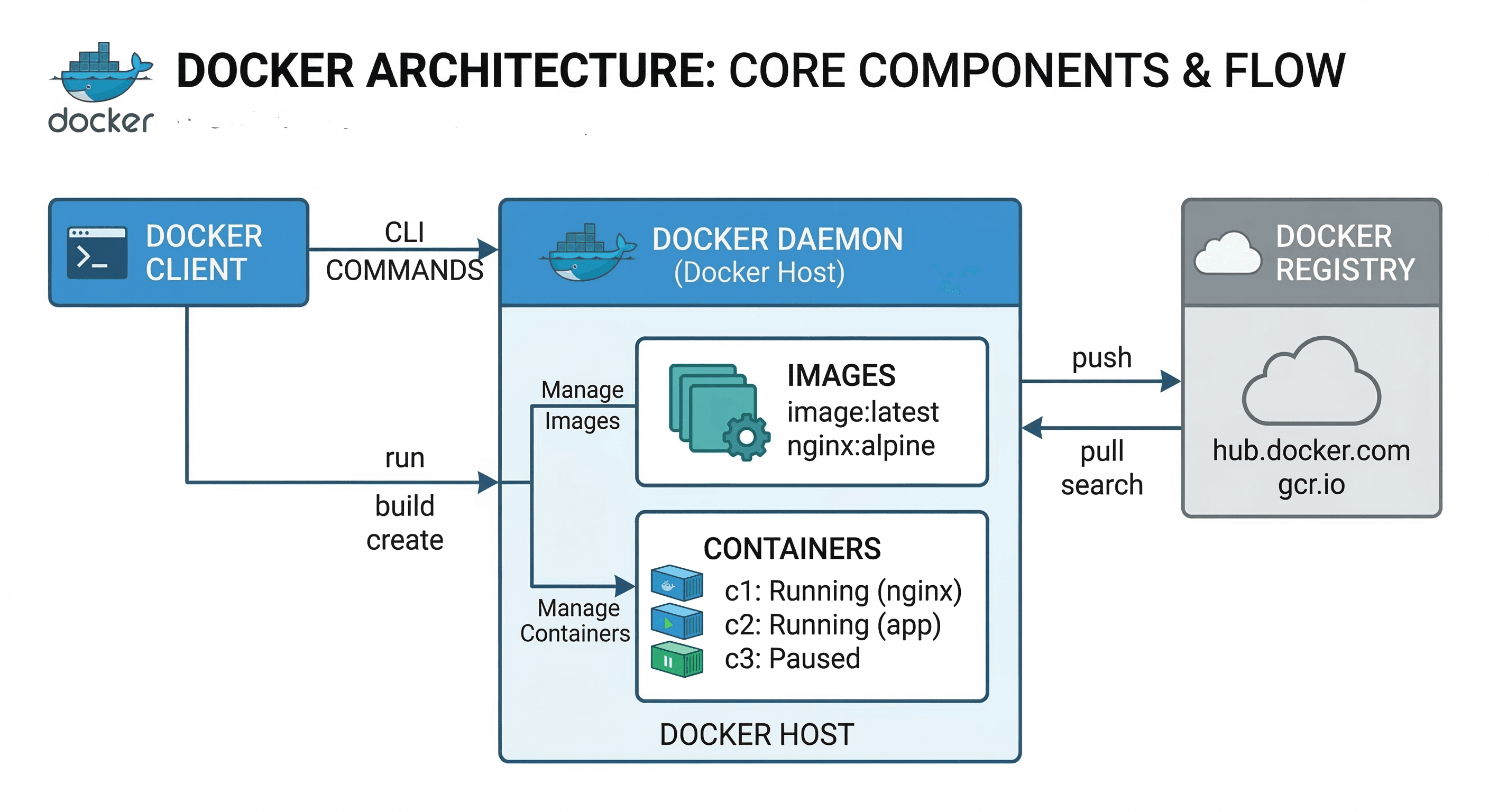
Docker uses a client-server architecture where the client communicates with a daemon that handles building, running, and distributing containers. The daemon exposes a REST API that clients use to manage containers, images, networks, and volumes.
Key Components:
- Docker Client: Command-line tool that sends commands to the daemon
- Docker Daemon: Background service that manages Docker objects
- Docker Images: Read-only templates used to create containers
- Docker Containers: Runnable instances of Docker images
- Docker Registry: Repository for storing and distributing images
Docker Installation#
Installing Docker on Windows#
Download Docker Desktop for Windows from the official Docker Hub website and run the installer. Enable WSL 2 integration during installation for better performance and Linux compatibility. After installation, Docker Desktop runs as a system tray application.
Installing Docker on Mac#
Download Docker Desktop for Mac from Docker Hub and drag the application to your Applications folder. The installer includes both Intel and Apple Silicon versions for compatibility. Docker Desktop runs as a menu bar application with a simple management interface.
Installing Docker on Linux#
Use the official package manager for your distribution to install Docker Engine. Add your user to the docker group to run commands without sudo. Enable the Docker service to start automatically on system boot.
Docker Core Concepts#
Docker Images#
An image is a read-only template with instructions for creating a Docker container. Images are built from Dockerfiles and consist of multiple layers that can be cached and reused. You can create custom images or use pre-built images from Docker Hub.
Docker Containers#
A container is a runnable instance of an image that includes the application, its dependencies, and runtime configuration. Containers can be started, stopped, moved, and deleted while maintaining their state through volumes. Multiple containers can run from the same image with different configurations.
Container Lifecycle#
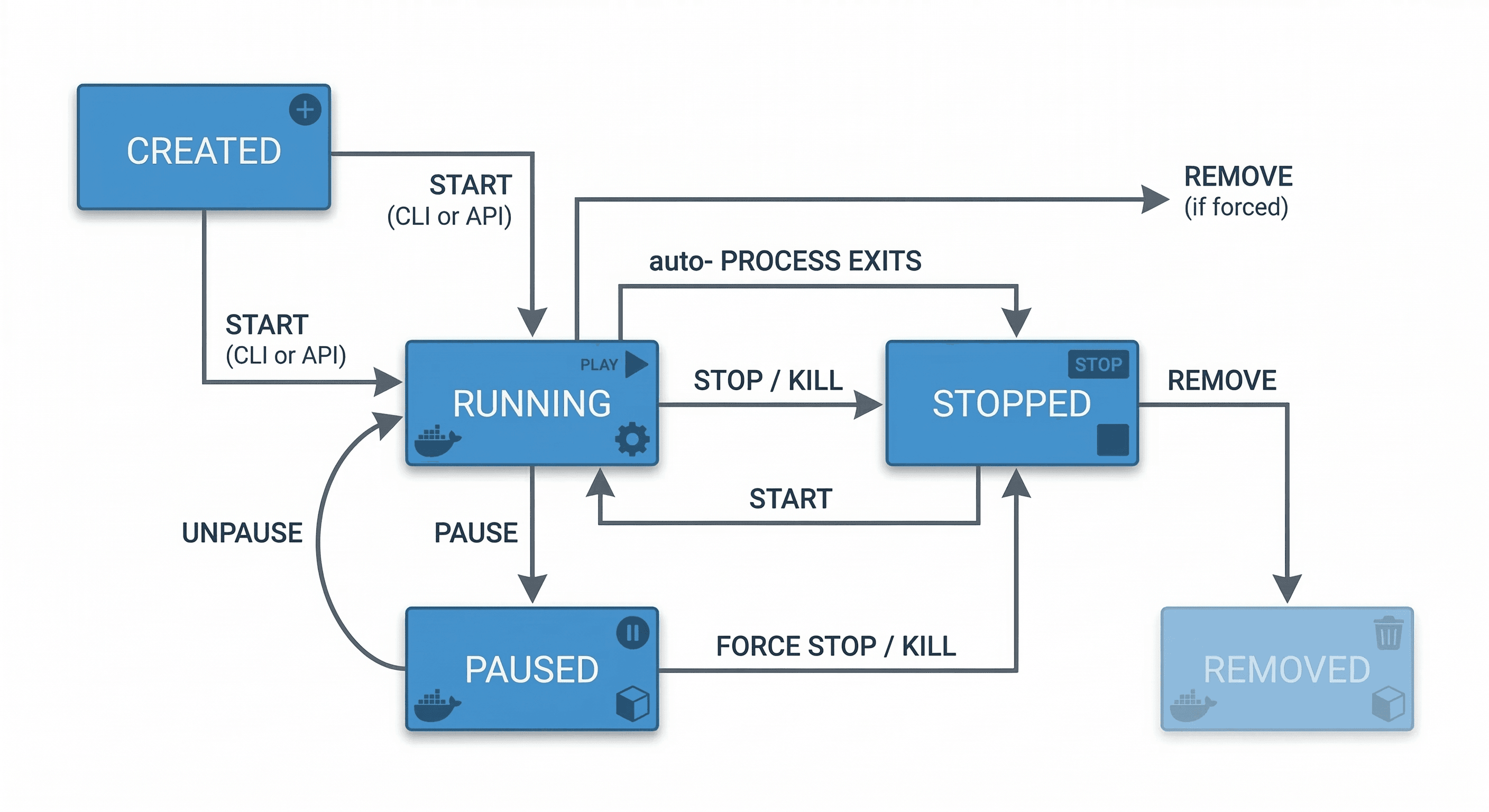
Containers transition through different states during their lifetime, from creation to removal. Understanding these states helps in managing container resources and debugging issues.
| State | Description | Command |
|---|---|---|
| Created | Container created but not started | docker create |
| Running | Container executing with active processes | docker start |
| Paused | Processes frozen, memory preserved | docker pause |
| Stopped | Main process terminated | docker stop |
| Removed | Container deleted, resources freed | docker rm |
Docker Container Lifecycle StatesDockerfile#
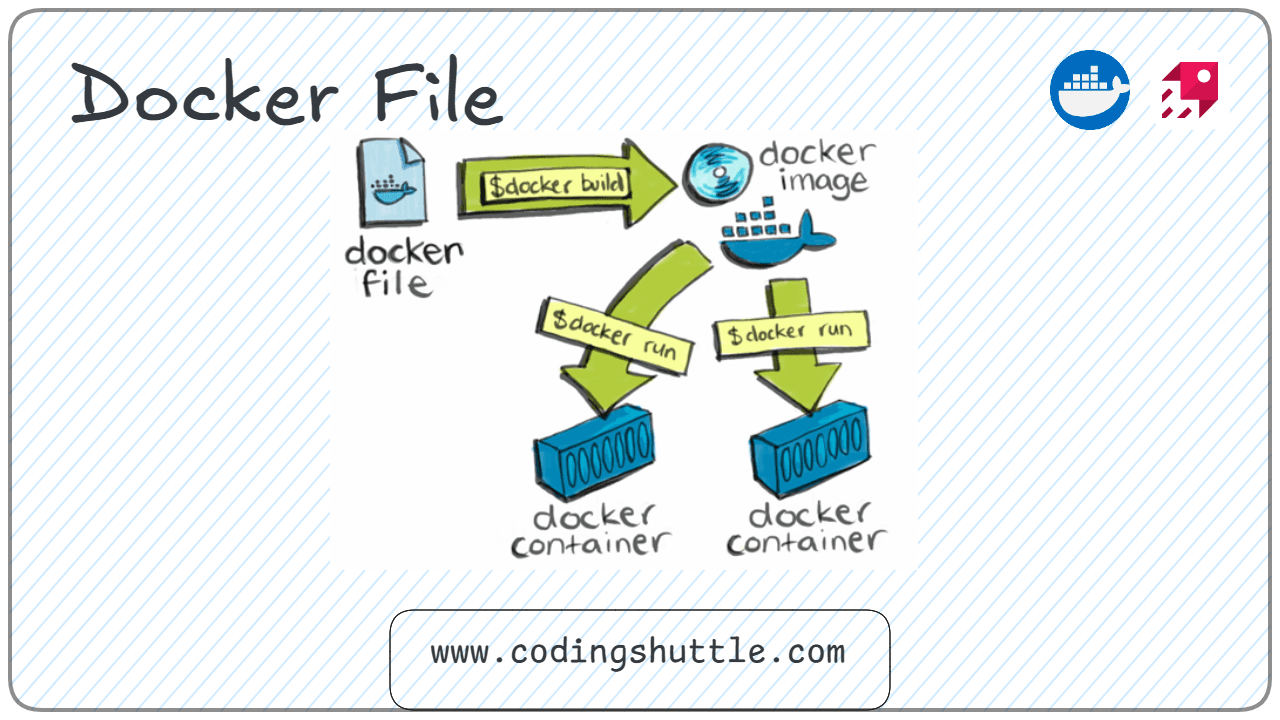
A Dockerfile is a text file containing instructions to build a Docker image automatically. Each instruction creates a layer in the image, with later layers building on previous ones. The Dockerfile defines the base image, application code, dependencies, and startup commands.
| Instruction | Purpose |
|---|---|
| FROM | Base image |
| WORKDIR | Set working directory |
| COPY | Copy files into image |
| ADD | Copy with additional features |
| RUN | Execute commands during build |
| ENV | Set environment variables |
| EXPOSE | Document port usage |
| CMD | Default container command |
| ENTRYPOINT | Main executable |
| USER | Set user for container |
Docker Image Layers#
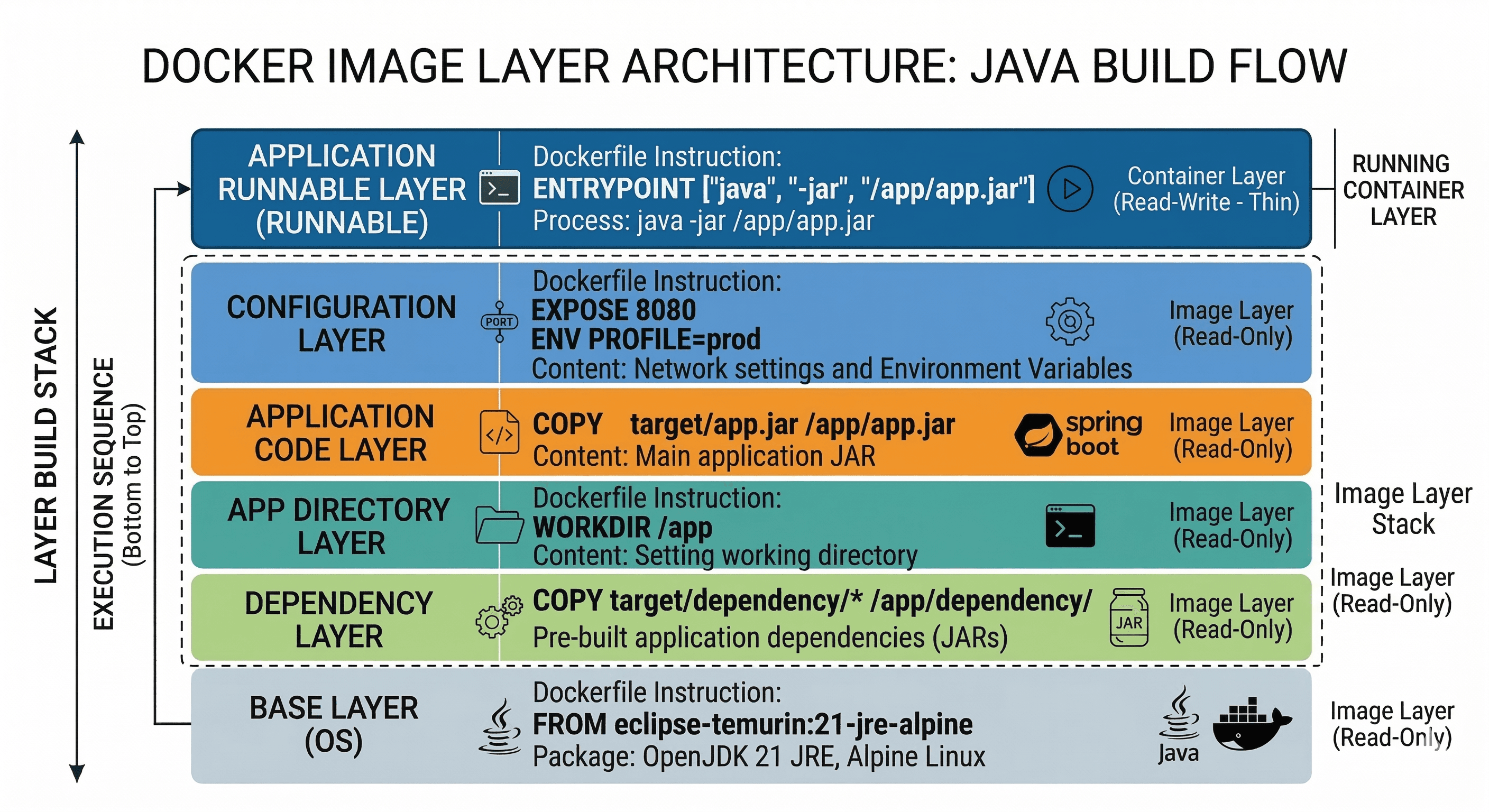
Each instruction in a Dockerfile creates a new layer in the final image, forming a stack of read-only filesystem changes. Docker caches these layers, so unchanged instructions reuse existing layers during subsequent builds. Layer caching significantly speeds up build times and reduces bandwidth when sharing images.
Docker Image Layers DiagramWorking with Docker Images#
Building Docker Images#
The docker build command creates images from a Dockerfile and context directory. Tags help organize and version images for easy reference and distribution. Build context includes all files sent to the daemon during image creation.
Managing Images#
Images require regular maintenance to remove unused ones and free disk space. Local images are stored in the Docker daemon's storage area and can be inspected for details.
Working with Containers#
Running Containers#
Containers start from images and can be configured with ports, volumes, environment variables, and restart policies. Port publishing maps container ports to host ports for external access. Background mode (-d) runs containers in the background, while interactive mode (-it) provides terminal access.
Managing Containers#
Container management involves monitoring, stopping, starting, and removing containers as needed. Container IDs can be referenced using the first few characters of the full ID.
Interactive Containers#
Interactive containers provide shell access for debugging, development, and exploration. The -it flag combines interactive mode with a pseudo-TTY for terminal support. You can execute additional commands in running containers with docker exec.
| State | Description | Command |
|---|---|---|
| Created | Container defined | docker create |
| Running | Active container | docker start |
| Paused | Processes frozen | docker pause |
| Stopped | Execution finished | docker stop |
| Removed | Container deleted | docker rm |
Docker Volumes and Storage#
Docker Volumes#
Volumes are the preferred mechanism for persisting data generated by and used by Docker containers. They are completely managed by Docker and stored in the Docker storage directory. Volumes can be named for easy reference and shared between multiple containers.
Bind Mounts#
Bind mounts map a host file or directory into a container, providing direct access to host filesystem. They are ideal for development where code changes should reflect immediately in the container. Bind mounts depend on the host filesystem structure and permissions.
tmpfs Mounts#
tmpfs mounts store data in the host's memory only, never written to the filesystem. They provide high-performance temporary storage for sensitive data that shouldn't persist. tmpfs mounts are ideal for secrets, tokens, or cache data.
Storage Types Comparison#
| Type | Persistence | Use Case | Performance |
|---|---|---|---|
| Volumes | Persistent, Docker-managed | Production data, databases | Native |
| Bind Mounts | Persistent, host-managed | Development, configuration files | Native |
| tmpfs | Non-persistent, in-memory | Cache, temporary files, secrets | Fastest |
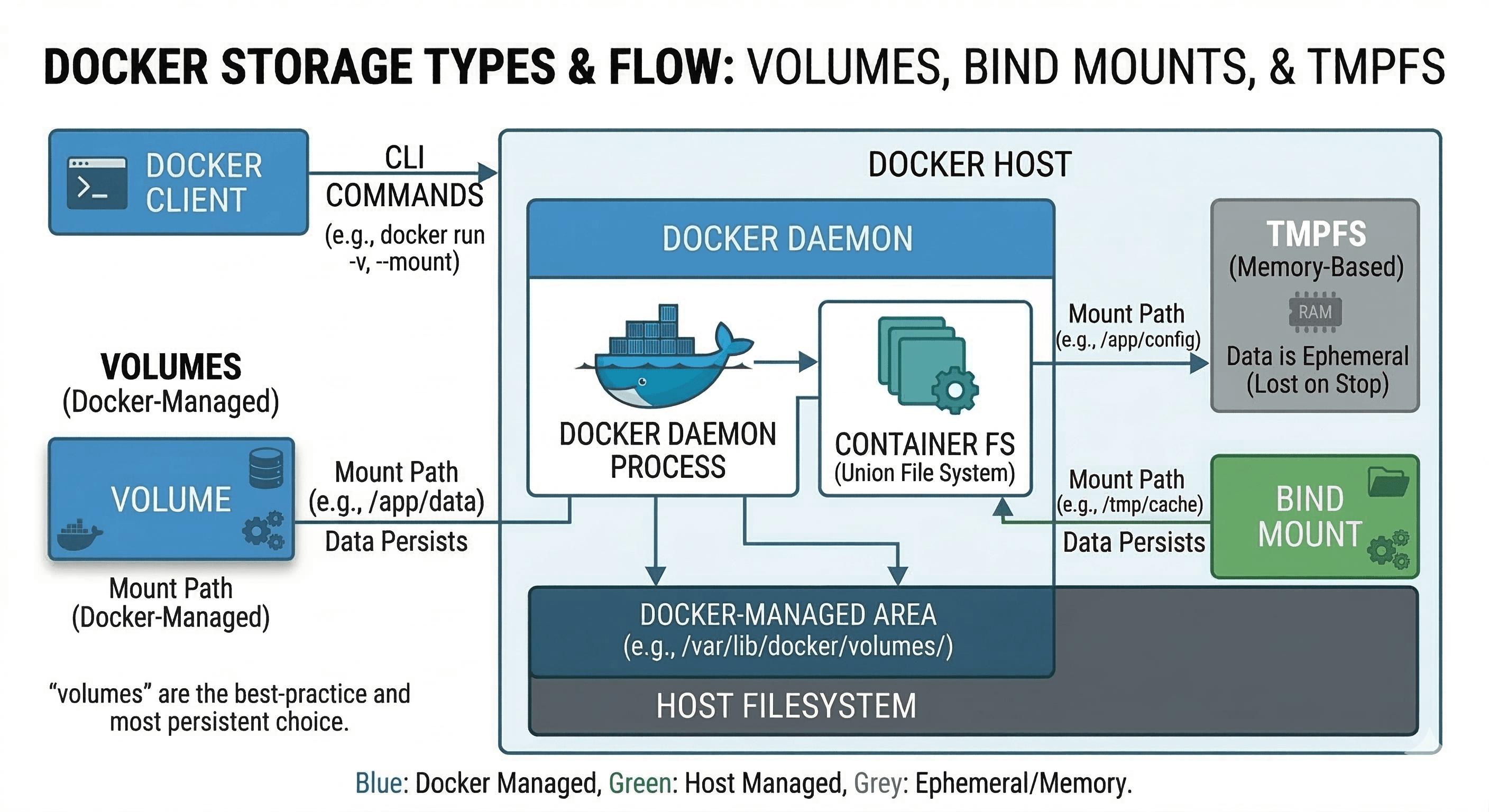
Docker Volume Storage ArchitectureDocker Networking#
Docker Networking Basics#
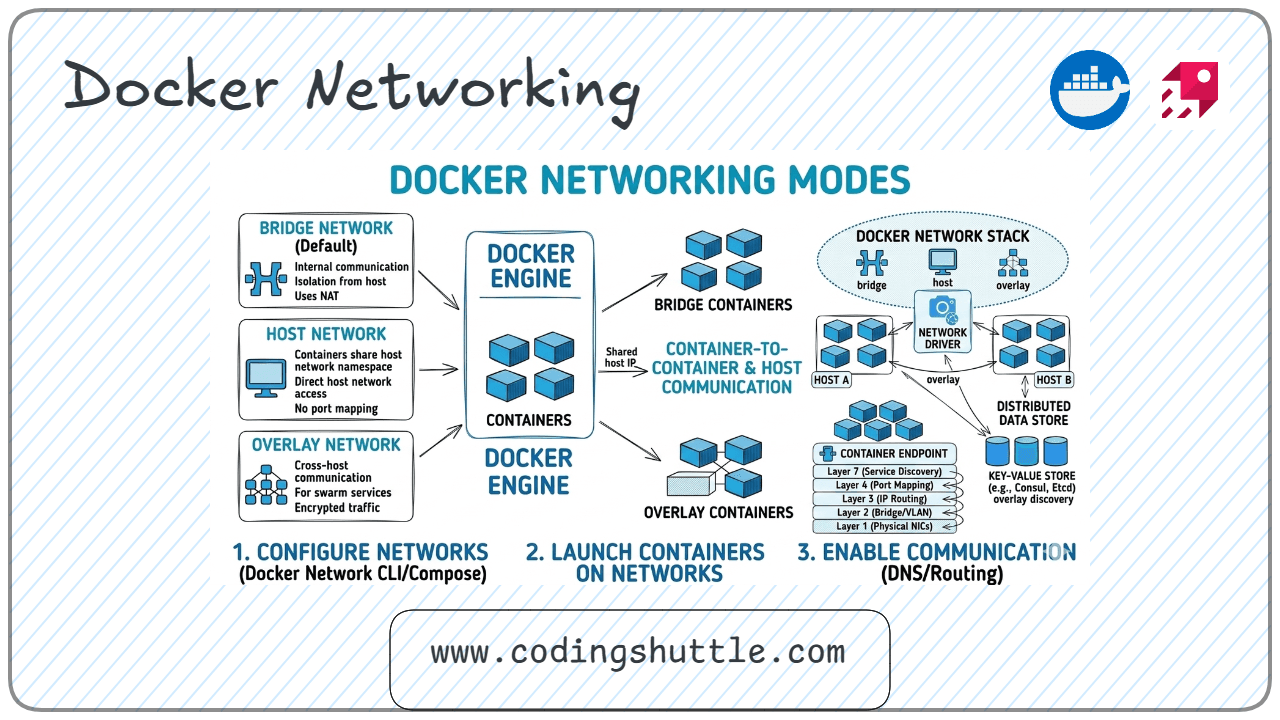
Networking enables containers to communicate with each other and with the outside world. Each container gets a virtual network interface with an IP address when created. Docker provides pluggable network drivers for different communication patterns.
Network Types#
Docker supports multiple network drivers to address different communication requirements. The choice of network type affects container isolation, performance, and accessibility.
| Network Type | Description | When to Use |
|---|---|---|
| Bridge | Default network, containers communicate via bridge | Single host, multiple containers |
| Host | Removes network isolation, uses host networking | Performance-critical apps |
| None | No network access, complete isolation | Security-sensitive containers |
| Overlay | Spans multiple Docker hosts | Swarm mode, multi-host clusters |
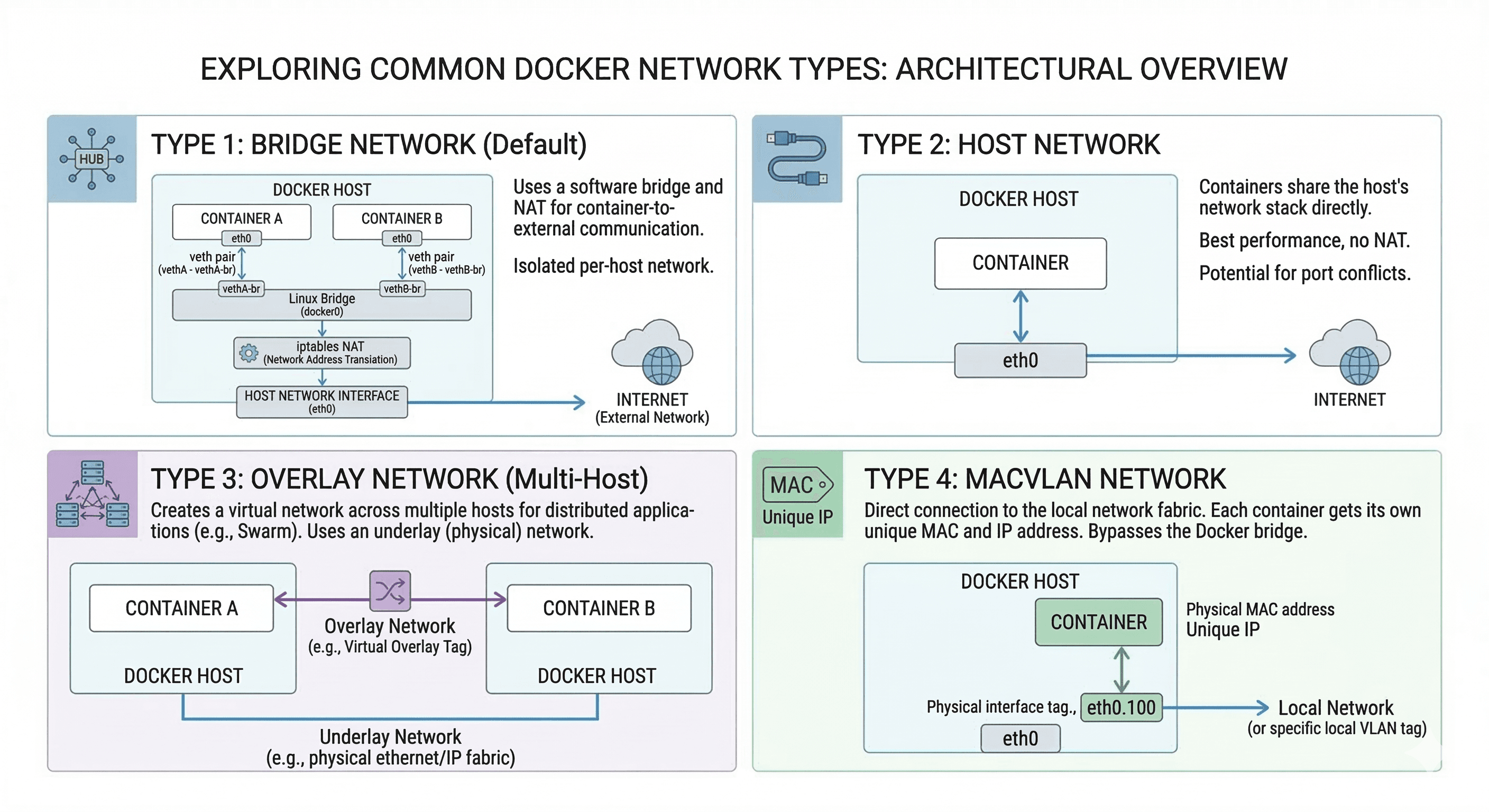
Docker Network Types DiagramDocker Registry#
Docker Hub#
Docker Hub is the default public registry where you can find thousands of official and community images. It provides automated builds, webhooks, and organization accounts for teams. Official images are maintained by Docker or the software vendor, ensuring quality and security.
Private Registries#
Private registries store images internally for security, compliance, or performance reasons. You can run your own registry using the registry:2 image or use cloud provider solutions. Private registries require authentication and can be integrated with CI/CD pipelines.
Pushing Images#
Pushing images makes them available to other developers and deployment environments. Images must be tagged with the registry name before pushing. Authentication is required for private registries and Docker Hub.
Pulling Images#
Pulling downloads images from a registry to your local Docker daemon. Images are pulled by name and tag, with :latest being the default if no tag specified. Pulls only download layers not already present locally.
Multi Container Applications#
Problems with Single Containers#
Single containers become complex when applications require databases, caches, or multiple services. Managing dependencies, networking, and data persistence across services becomes challenging. Scaling individual components independently is impossible with monolithic containers.
Multi Container Architecture#
Multi-container applications separate concerns into specialized containers that communicate over networks. Each container runs a single process or service, following the Unix philosophy. This architecture enables independent scaling, updates, and maintenance of each component.
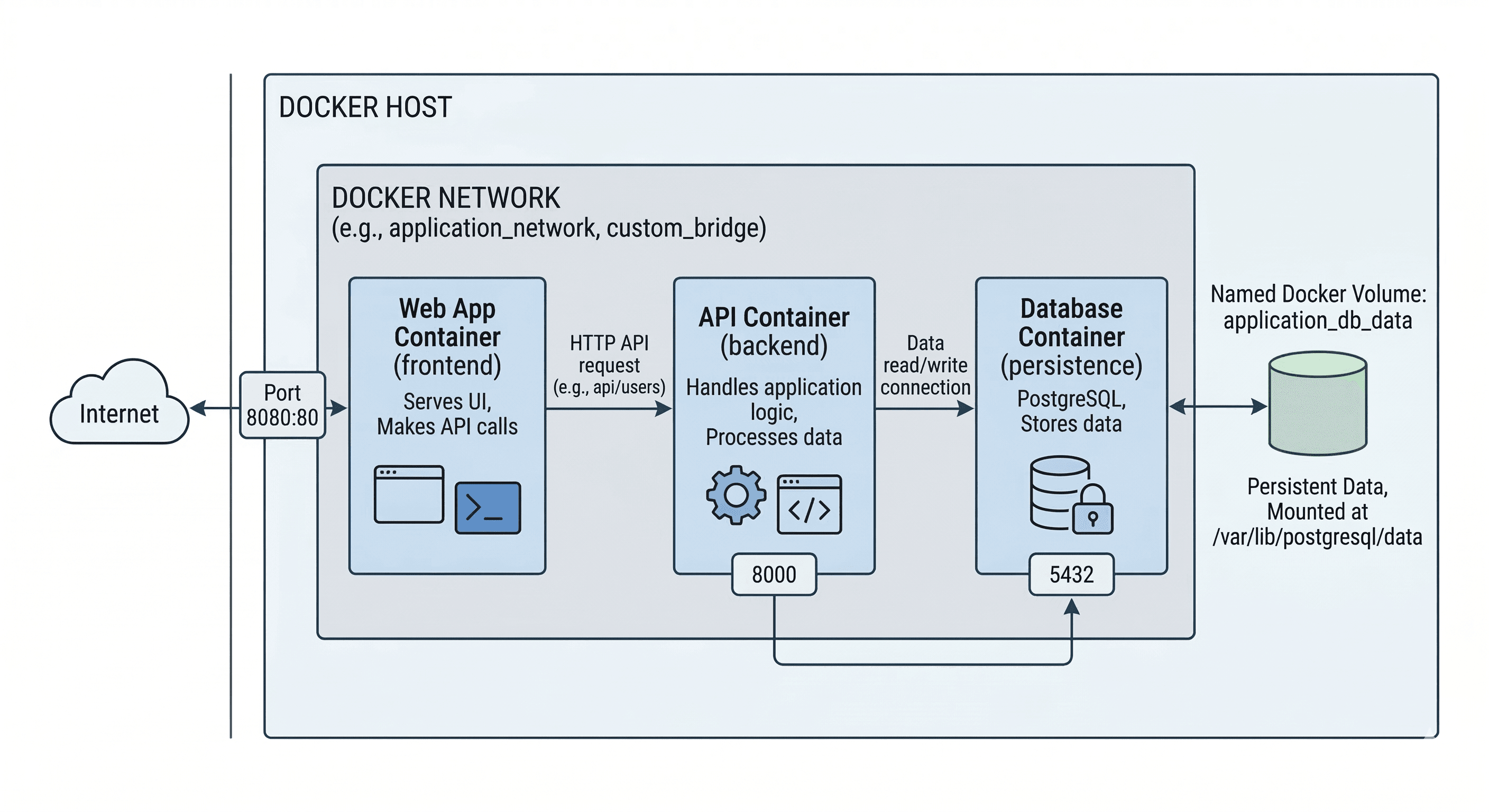
Multi-Container Application ArchitectureDocker Compose#
What is Docker Compose#
Docker Compose is a tool for defining and running multi-container Docker applications using YAML files. It simplifies container orchestration by managing networks, volumes, and service dependencies. One command starts all services defined in the compose file.
docker-compose.yml Structure#
The compose file defines services, networks, and volumes for your application. Services specify container images, ports, environment variables, and dependencies. Networks enable service discovery using service names as hostnames.
Running Compose Applications#
Compose commands manage the entire application lifecycle from a single directory. Services start in dependency order and can be scaled for specific services. Compose projects are isolated by directory or project name.
Compose with Networks#
Custom networks provide service isolation and controlled communication between containers. Networks can be defined with specific drivers and configurations. Services on the same network can resolve each other by service name.
Compose with Volumes#
Volumes in Compose persist data across container restarts and recreations. Named volumes are managed by Docker, while bind mounts map host directories. Volume configurations can include driver options and labels.
Compose with Port Binding#
Port binding exposes container ports to the host or other networks. Published ports can be mapped to specific host ports or random high ports. Port configurations support both IPv4 and IPv6 addresses.
Useful Docker Commands Cheat Sheet#
| Command | Description | Example |
|---|---|---|
| docker ps | List running containers | docker ps -a |
| docker images | List local images | docker images --format "table" |
| docker build | Build image from Dockerfile | docker build -t app . |
| docker run | Create and start container | docker run -d nginx |
| docker stop | Stop running container | docker stop container_id |
| docker start | Start stopped container | docker start container_id |
| docker rm | Remove container | docker rm -f container_id |
| docker rmi | Remove image | docker rmi image_name |
| docker pull | Download image | docker pull alpine:latest |
| docker push | Upload image | docker push user/app:tag |
| docker exec | Run command in container | docker exec -it cont bash |
| docker logs | View container logs | docker logs -f cont |
| docker network | Network management | docker network ls |
| docker volume | Volume management | docker volume prune |
| docker compose | Compose management | docker compose up |
Docker Best Practices#
Small Images
- Use minimal base images like alpine, slim variants, or distroless
- Combine RUN commands to reduce layer count
- Remove package manager caches and temporary files
- Use multi-stage builds to discard build dependencies
Multi-Stage Builds
- Separate build environment from runtime environment
- Copy only artifacts from build stage to final stage
- Reduce final image size by excluding build tools
- Maintain separate stages for development and production
.dockerignore
- Exclude version control directories (.git, .svn)
- Ignore local configuration files (.env, .local)
- Skip build artifacts and dependency caches
- Exclude test files and documentation
Non-Root Containers
- Create and use non-root users in containers
- Set USER instruction in Dockerfile
- Avoid running processes as root
- Use read-only root filesystems when possible
Docker Workflow#
The Docker development workflow provides a consistent path from code to deployment. Changes are tested in containers matching production environments. Images are versioned and stored in registries for distribution.
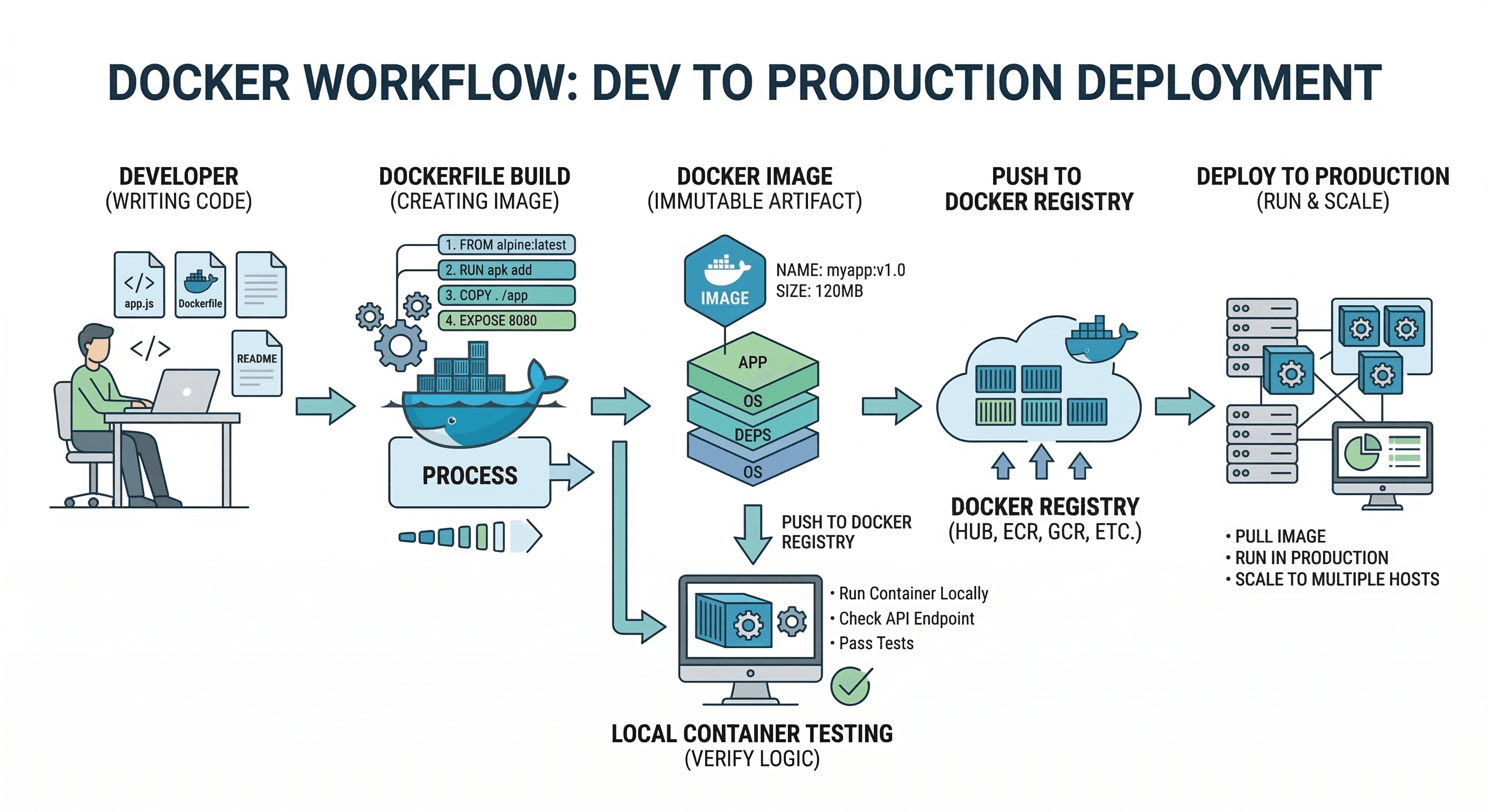
Complete Docker Development Workflow- Write application code and create Dockerfile
- Build image with docker build and tag appropriately
- Test locally with docker run or docker compose
- Push image to registry with docker push
- Deploy to production using docker run or orchestrator
- Monitor and update containers as needed
Conclusion#
Docker has become the industry standard for containerization, enabling developers to build, ship, and run applications anywhere with consistency and efficiency. By packaging applications with their dependencies, containers eliminate environment inconsistencies and streamline the development-to-production pipeline. This cheat sheet provides essential commands and concepts for daily Docker use, from basic container operations to multi-application orchestration with Compose. Keep it handy as your quick reference to master container workflows and build portable, scalable applications in any environment.
Want to Master Spring Boot and Land Your Dream Job?
Struggling with coding interviews? Learn Data Structures & Algorithms (DSA) with our expert-led course. Build strong problem-solving skills, write optimized code, and crack top tech interviews with ease
Learn more